

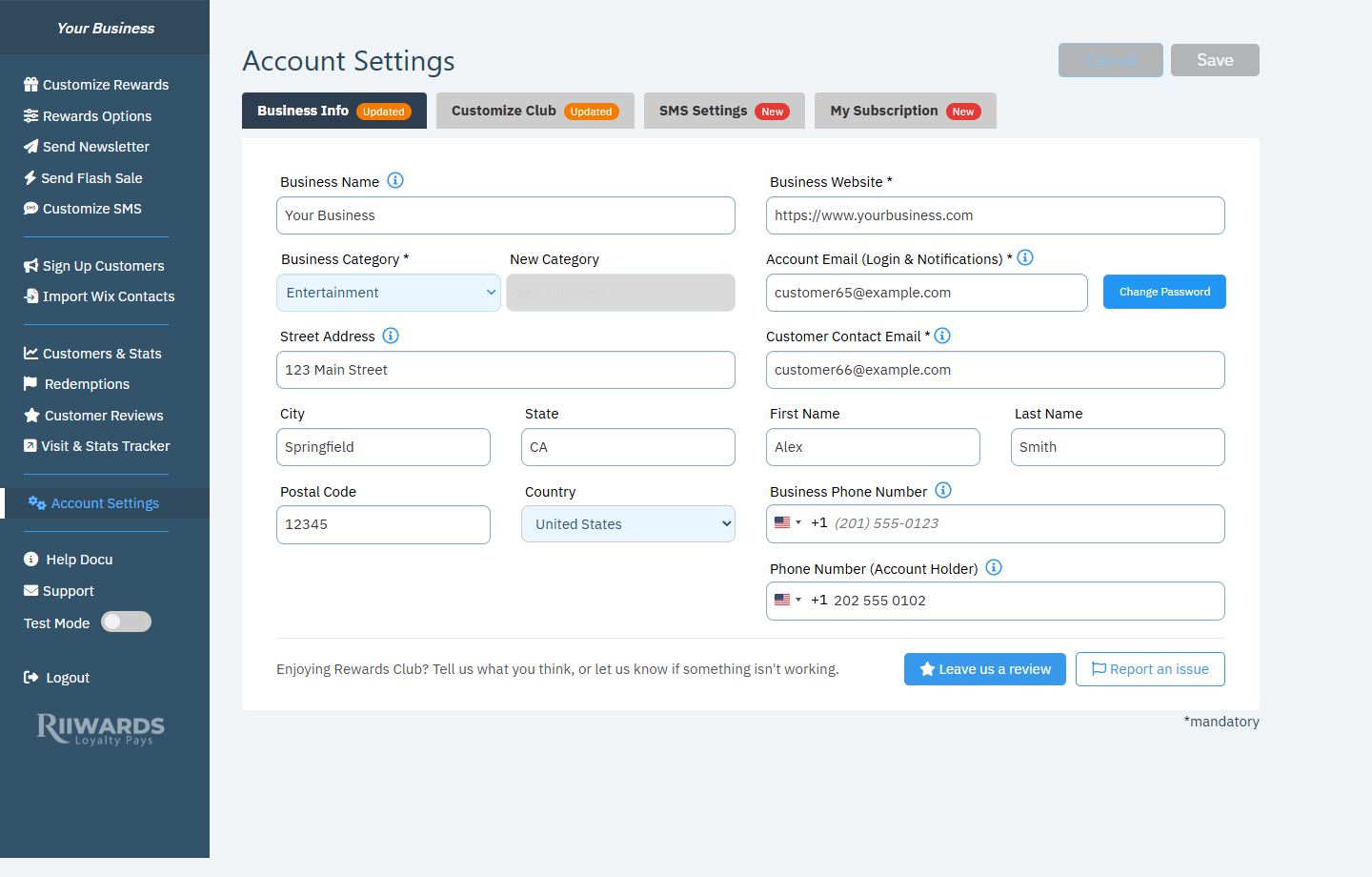
Account Settings, Business Info tab
Edit your business information
1
Open Business Info
Click Account Settings in the left menu, then the Business Info tab.
2
Update the fields
Change any field. Fields marked with * are required.
3
Save
Click Save at the top right. Click Cancel to discard your changes.
Fields
Change your password
- In the Business Info tab, click Change Password next to your account email.
- Enter your new password in New Password and again in Reenter Password.
- Click Change Password.
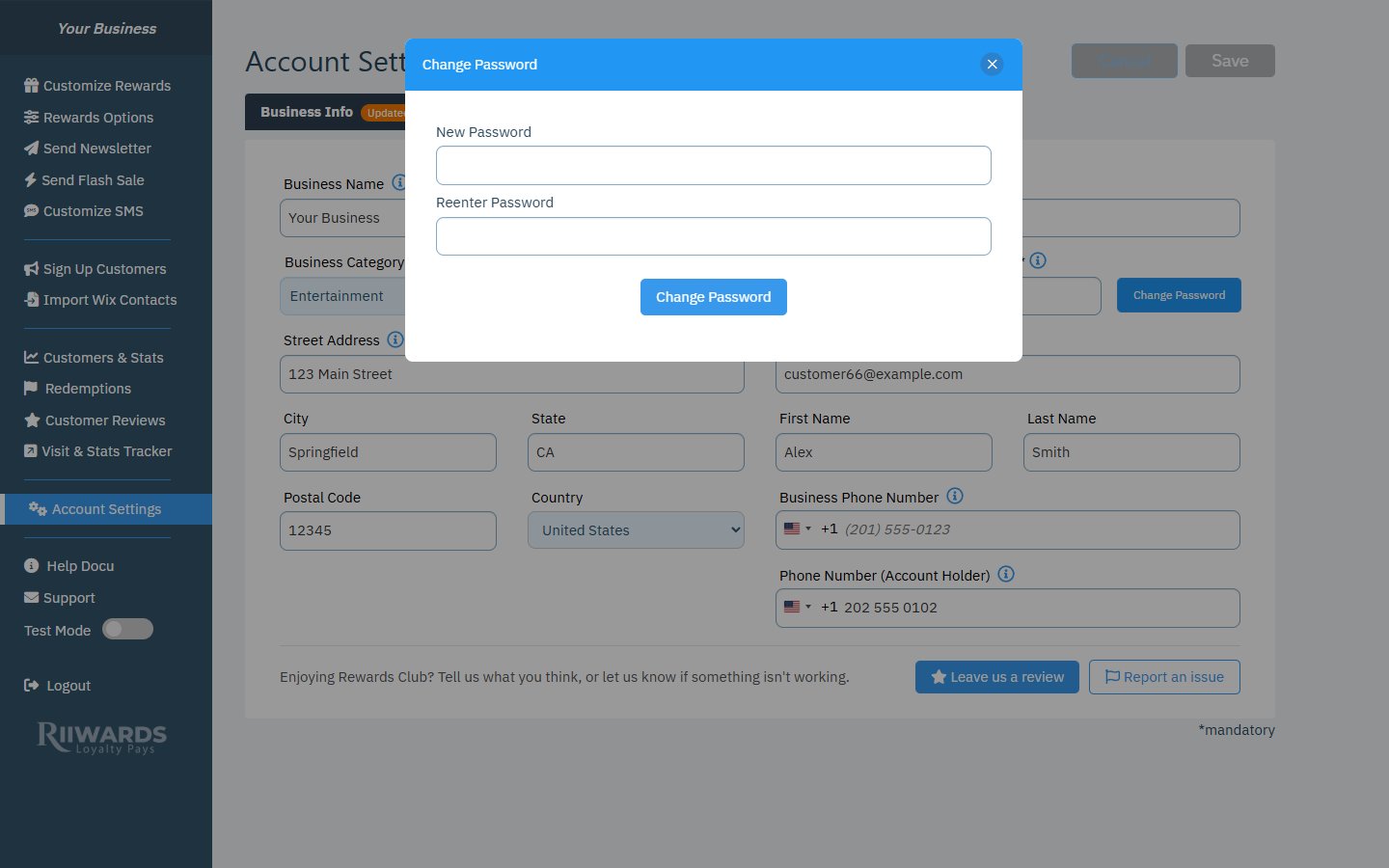
Change Password window
Tell us what you think
At the bottom of the tab, Leave us a review and Report an issue let you share feedback or report a problem. See Get help.Related
Customize club
Club name, language, logo and social links.
SMS settings
SMS name, sending hours and reminders.
Subscription and billing
Your plan, upgrades and payments.
Email deliverability
Help your emails reach the inbox.