

Monthly Rewards are available on the Marketing+ plan or higher.
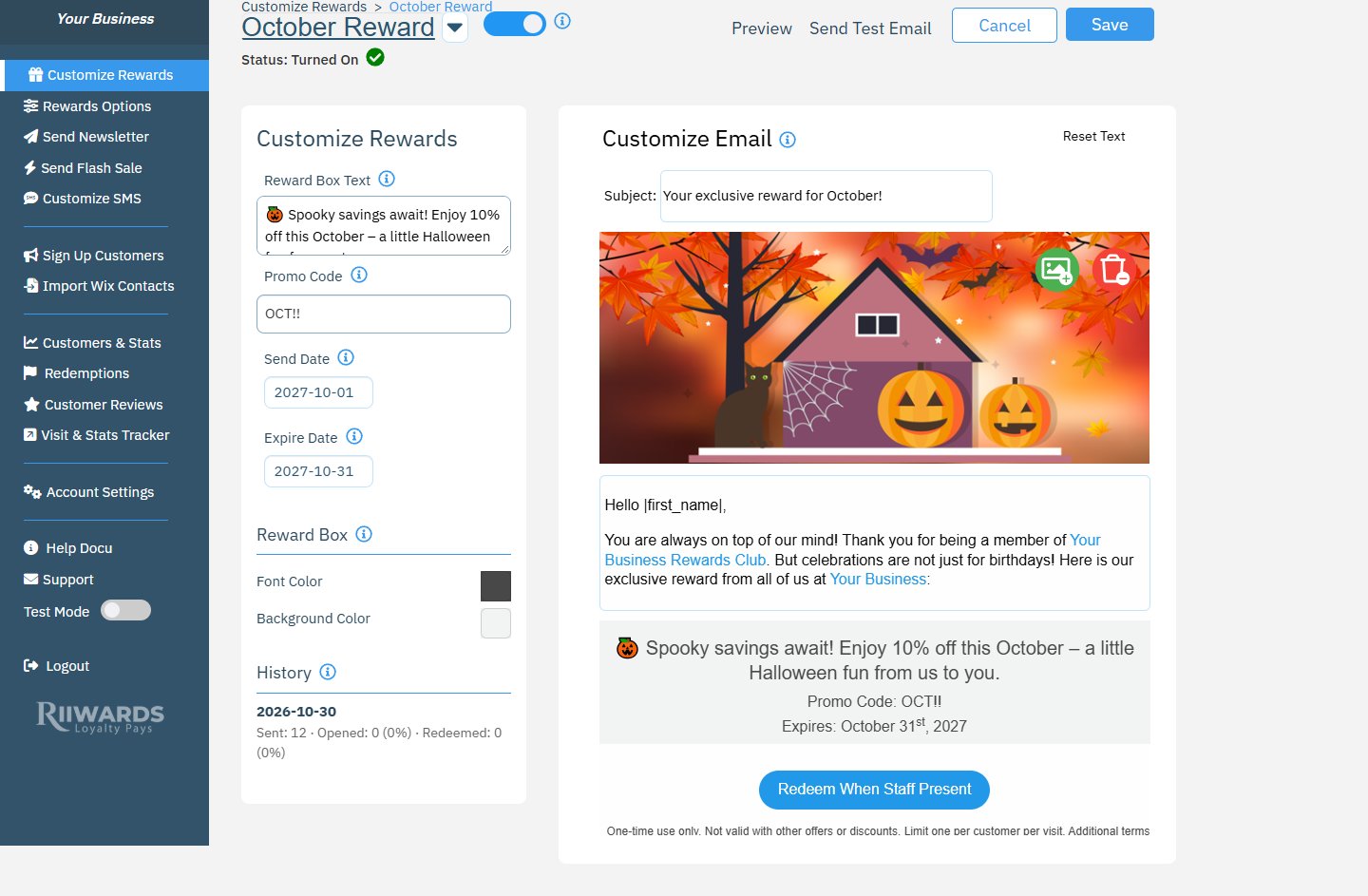
Editing the October monthly reward
Set up a monthly reward
1
Pick the month
Click the month in the grid. Inside the editor, you can switch to another month with the dropdown arrow next to the title (for example October Reward).
2
Describe the reward
In Reward Box Text, describe the reward in up to 160 characters, for example “Enjoy 10% off this October.”
3
Add a promo code (optional)
Enter your own code in Promo Code, or leave it blank to let Rewards Club create a unique tracking code that customers do not see. A code is required if customers redeem rewards in your online store.
4
Set the dates
Click Send Date and pick the day the emails should start. Then click Expire Date and pick the last day the reward can be used. You can only pick today or a later date.
5
Edit the email
Set the reward box colors and edit the subject, banner image and text on the right.
6
Turn the month on and save
Turn on the toggle at the top and click Save. Nothing is sent for a month while it is turned off.
How sending works
- Members who are already in your club receive the reward on the Send Date.
- Customers who join after the Send Date, while the reward is still valid, automatically receive it on the following days.
- Emails are only sent between the Send Date and the Expire Date. After the Expire Date, the month turns itself off.
Track results in History
The History section on the left lists each send date with:Related
Rewards overview
All reward types and their status.
Edit reward emails
Every field and button in the email editor.
Send a newsletter
Send a one-off email to all members.
Redemptions
See which rewards customers redeemed.