

Confirm Visits is available when Confirm Visits with Visit Tracker is turned on in Rewards Options (Loyalty+ plan). To also record what the customer spent, turn on Enter Amount Spent per In-Person Visit in the same place.
Confirm a visit
Open the Visit Tracker and tap Confirm Visits in the menu. Visits waiting for confirmation appear as cards. When nothing is waiting, the page says “Well done! All visits are confirmed.” Tap Refresh to check for new visits.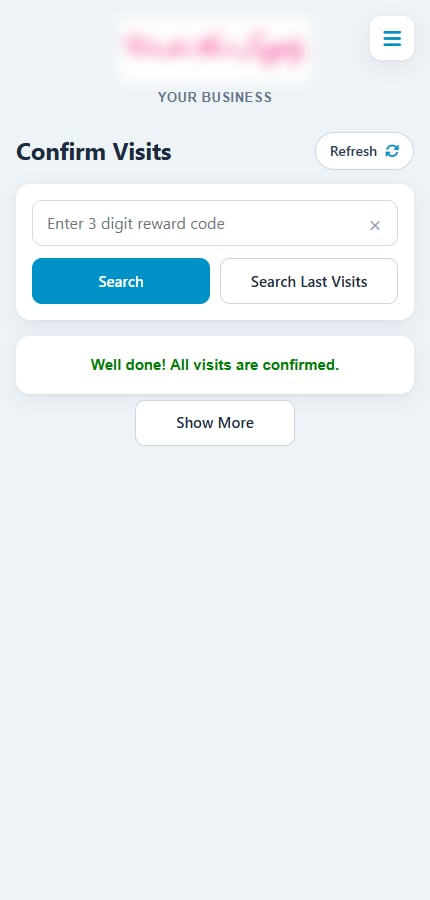
Confirm Visits with nothing waiting
1
Ask for the reward code
When the customer taps the redeem or check-in button in their reward email, their phone shows a code with the message to show it to your staff. Ask to see it.
2
Search for the code
Type it in Enter 3 digit reward code and tap Search. The visit card appears with the customer and reward.
3
Enter the amount spent (if asked)
If your club records the amount spent, type it in Amount spent, for example
24.50. Confirm stays disabled until you enter a valid amount.4
Tap Confirm
The card shows Visit Confirmed. For a milestone visit (25, 50 or 100 visits), the card also shows the milestone reward.
What the visit card can show
Amounts can be from 0 to 9999.99, with up to two decimals.
Redeem a promo code
Some rewards come with an 8-digit promo code instead of a redeem button.1
Open Redeem Promo Code
Tap the menu button, then Redeem Promo Code.
2
Enter the code
Type the code in Enter 8 digit promo code. A dash is added automatically after the first four digits.
3
Tap Redeem Now
The reward is redeemed and can’t be used again.
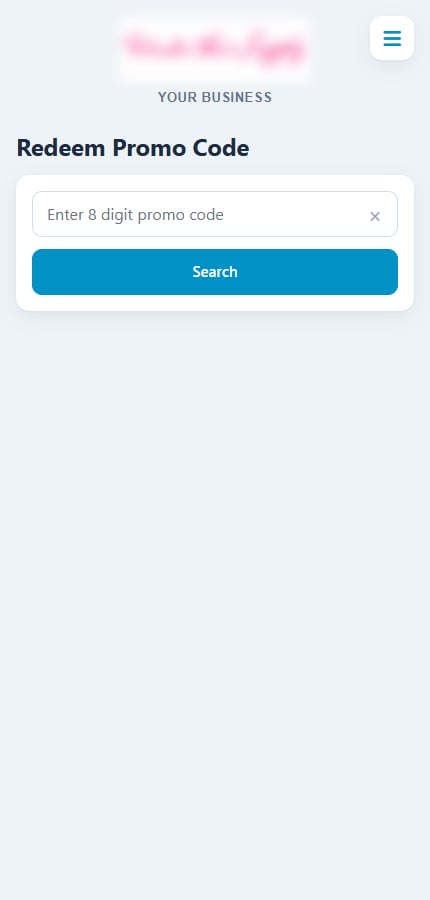
Redeem Promo Code screen
Related
Visit Tracker overview
Open the tracker and find your way around.
Check-in rewards
Reward customers for repeat visits.
Visit Tracker reports
See confirmed redemptions and amounts.