

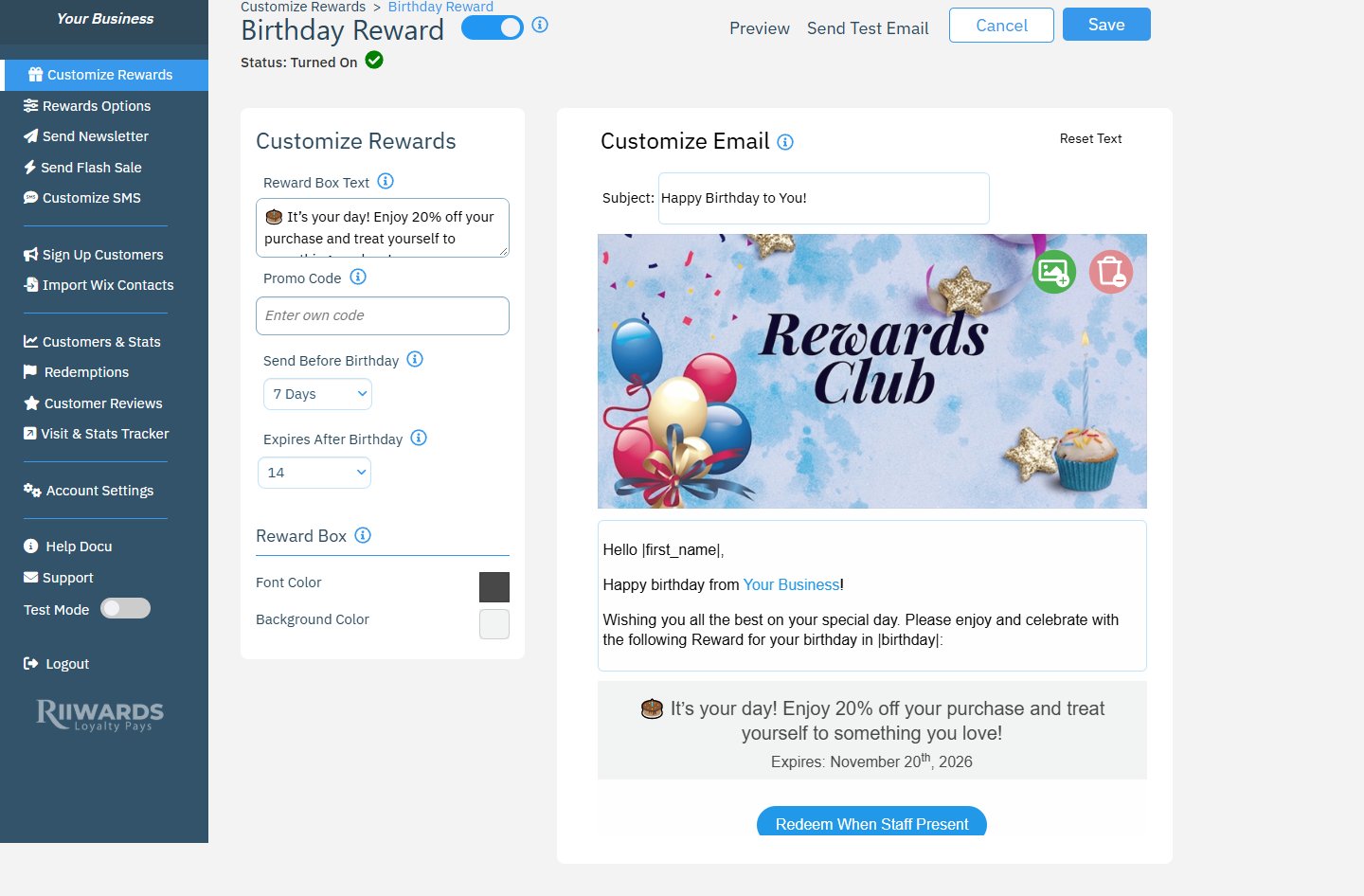
The Birthday Reward editor
How birthdays are collected
Customers enter their birthday month and day when they join through your signup form. Rewards Club does not ask for the year of birth. The birthday appears in the Birthday Month / Day column on Customers & Stats.Set up the birthday reward
1
Describe the reward
In Reward Box Text, describe the reward in up to 160 characters. This text appears in the email and on your Rewards Club signup form, so it is also what convinces people to join.
2
Add a promo code (optional)
Enter your own code in Promo Code, or leave it blank to let Rewards Club create a unique tracking code that customers do not see. A code is required if customers redeem rewards in your online store.
3
Choose when to send it
In Send Before Birthday, choose how many days before the birthday the email goes out: 7, 14, 30, 45 or 60 days.
4
Choose when it expires
In Expires After Birthday, choose how many days after the birthday the reward stays valid: 7, 14, 30, 45 or 60 days, or Never. The expiry date is printed in the email.
5
Style and edit the email
Set the reward box Font Color and Background Color, then edit the subject, banner image and text on the right. The default email uses
|birthday| to show the customer’s birthday month.6
Turn it on and save
Turn on the toggle next to Birthday Reward and click Save.
Example
If Send Before Birthday is 14 days and Expires After Birthday is 7 days, a customer whose birthday is June 20 receives the email on June 6, and the reward is valid until June 27.Related
Edit reward emails
Every field and button in the email editor.
Anniversary reward
Celebrate customer anniversaries the same way.
How redemption works
How customers use their reward.
Rewards Options
One-time use and redemption limits.