

Check-In Rewards are available on the Loyalty+ plan or higher, and only for businesses where customers redeem rewards in person. If your club is set to online redemption only, the Check-In card is hidden. You can change this in Customize Club.
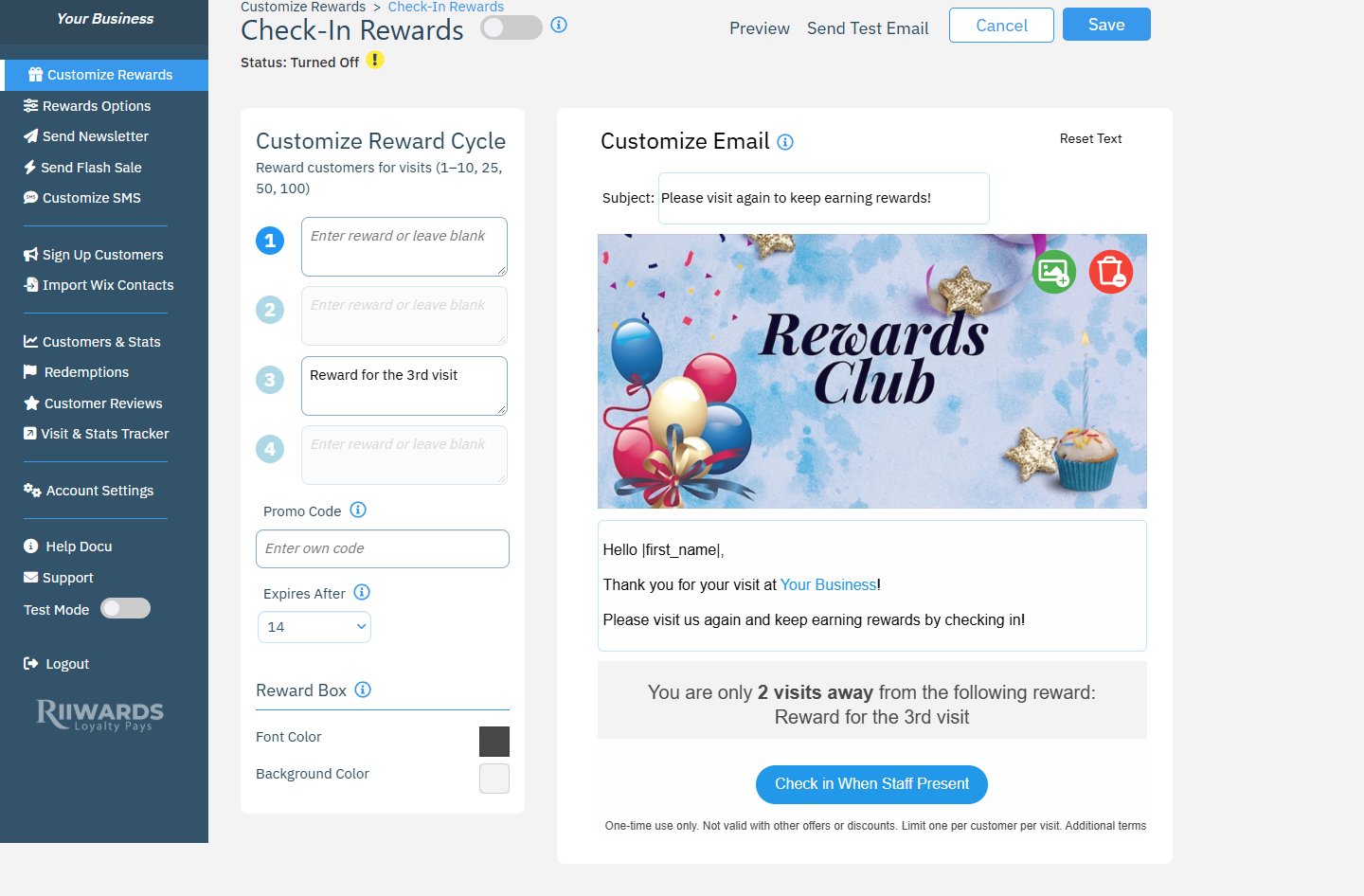
The Check-In Rewards editor with the reward cycle on the left
How visits are counted
- A customer joins your club and receives their signup reward.
- When they visit and redeem a reward, or tap Check in When Staff Present in a check-in email while your staff is present, the visit is recorded.
- Each recorded visit triggers the next check-in email, which tells the customer how many visits they are away from their next reward (for example, “You are only 2 visits away from the following reward”).
- Redeeming other rewards, such as the birthday reward, also counts as a visit.
- After the 10th visit, the cycle starts again. Milestone rewards are based on the total number of visits.
Set up the reward cycle
1
Choose which visits earn a reward
Under Customize Reward Cycle, each circle (1 to 10) is a visit. Type a reward in the field next to a visit, up to 160 characters. Leave a field blank for visits that should not earn a reward. The customer still receives a check-in email that keeps them moving through the cycle.
2
Add milestone rewards (optional)
Under Milestone Rewards, enter rewards for the 25th, 50th and 100th visit. Generous milestones give frequent customers a strong reason to keep coming back.
3
Set a promo code and expiry
Optionally enter a Promo Code. In Expires After, choose how many days a reward stays valid after the customer checks in.
4
Edit the email
Set the reward box colors and edit the subject, banner image and text on the right.
5
Turn it on and save
Turn on the toggle next to Check-In Rewards and click Save.
Settings that affect check-ins
These settings are on the Rewards Options page:Check-in rewards always use one-time use, so each check-in or reward can only be used once.
Related
Rewards Options
Redemption timing and visit confirmation.
Confirm visits
Confirm visits and record amounts in the Visit Tracker.
How redemption works
What happens when a customer taps Redeem.
Edit reward emails
Every field and button in the email editor.