

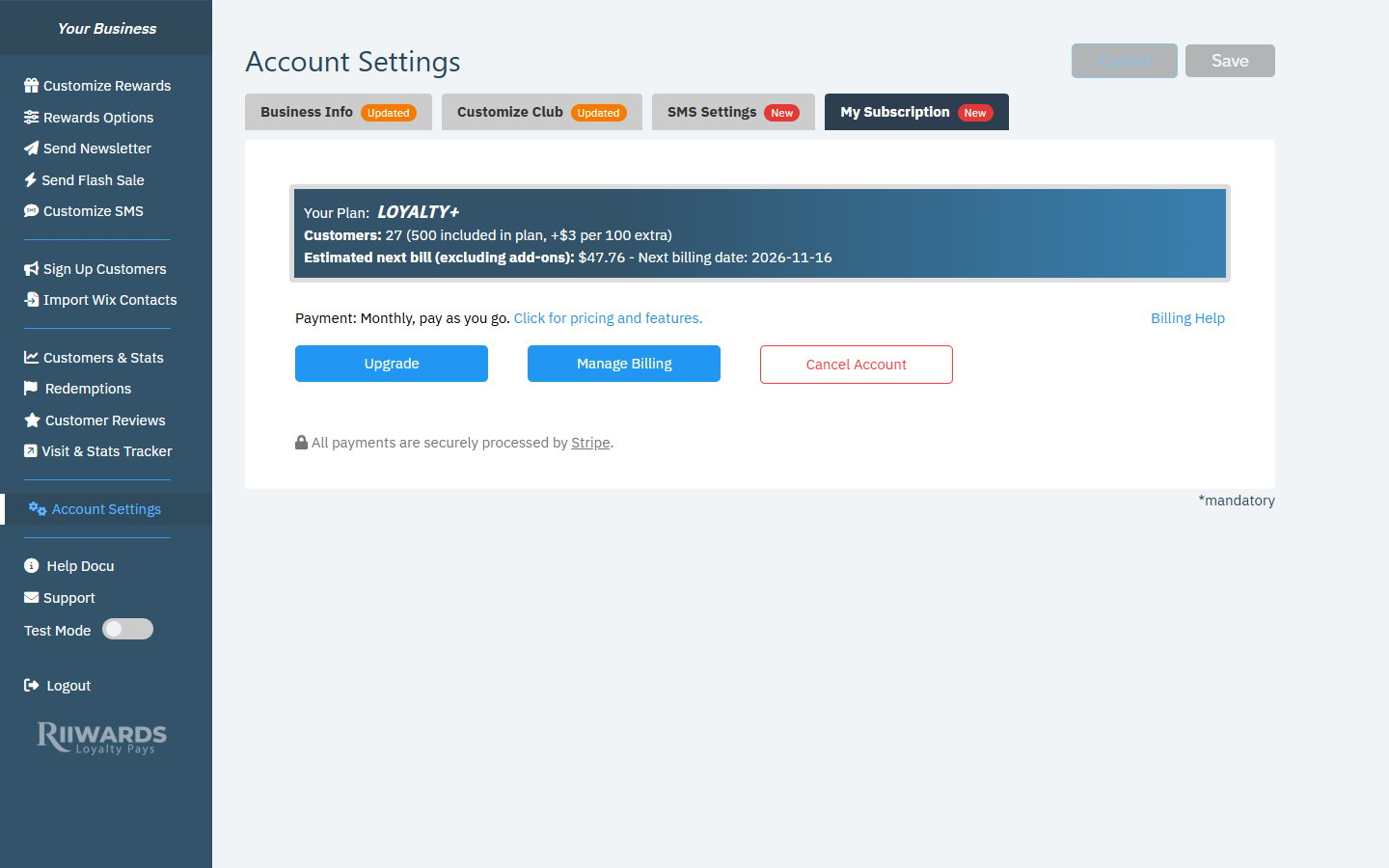
Account Settings, My Subscription tab
What the plan box shows
Below the box, Payment: Monthly, pay as you go. describes how you are billed. Click Click for pricing and features. to see current plans and prices, or Billing Help for billing articles.
Upgrade your plan
1
Click Upgrade
In the My Subscription tab, click Upgrade.
2
Choose a plan
Pick the plan that includes the features you need. See Plans and features.
3
Pay with Stripe
Enter your payment details on the secure Stripe checkout page. When you return to the dashboard, your new plan is active.
Update payment details and see invoices
Click Manage Billing to open the Stripe billing portal. There you can update your card, see your invoices and review your payment history.SMS has its own subscription. To change your SMS plan or see SMS charges, go to Account Settings > SMS Settings. See SMS billing.
Wix subscriptions
If you previously paid for a plan through Wix, the tab may show: “It looks like you have an active subscription on WiX. Please make sure to cancel it there before upgrading.” Cancel the Wix subscription in your Wix account first, so you are not charged twice.Cancel your account
Click Cancel Account to cancel. You can cancel right away or at the end of your billing period. See Cancel your account.Related
Plans and features
Which features each plan unlocks.
Free plan
Limits of the Free plan.
SMS billing
How SMS plans and Flash Sales are charged.
Cancel your account
Options and what happens after you cancel.