A field-by-field guide to the reward email editor: reward box text, promo codes, colors, subject, banner images, placeholders, preview and test emails.
Every reward in Rewards Club (signup, birthday, anniversary, monthly and check-in) uses the same email editor. The left side controls the reward itself, and the right side is a live version of the email you can click and edit. This page explains every field and button so you can make your reward emails look and sound like your business.To open the editor, click Customize Rewards in the left menu, then click Edit on a reward card (or click a month under Monthly Rewards).
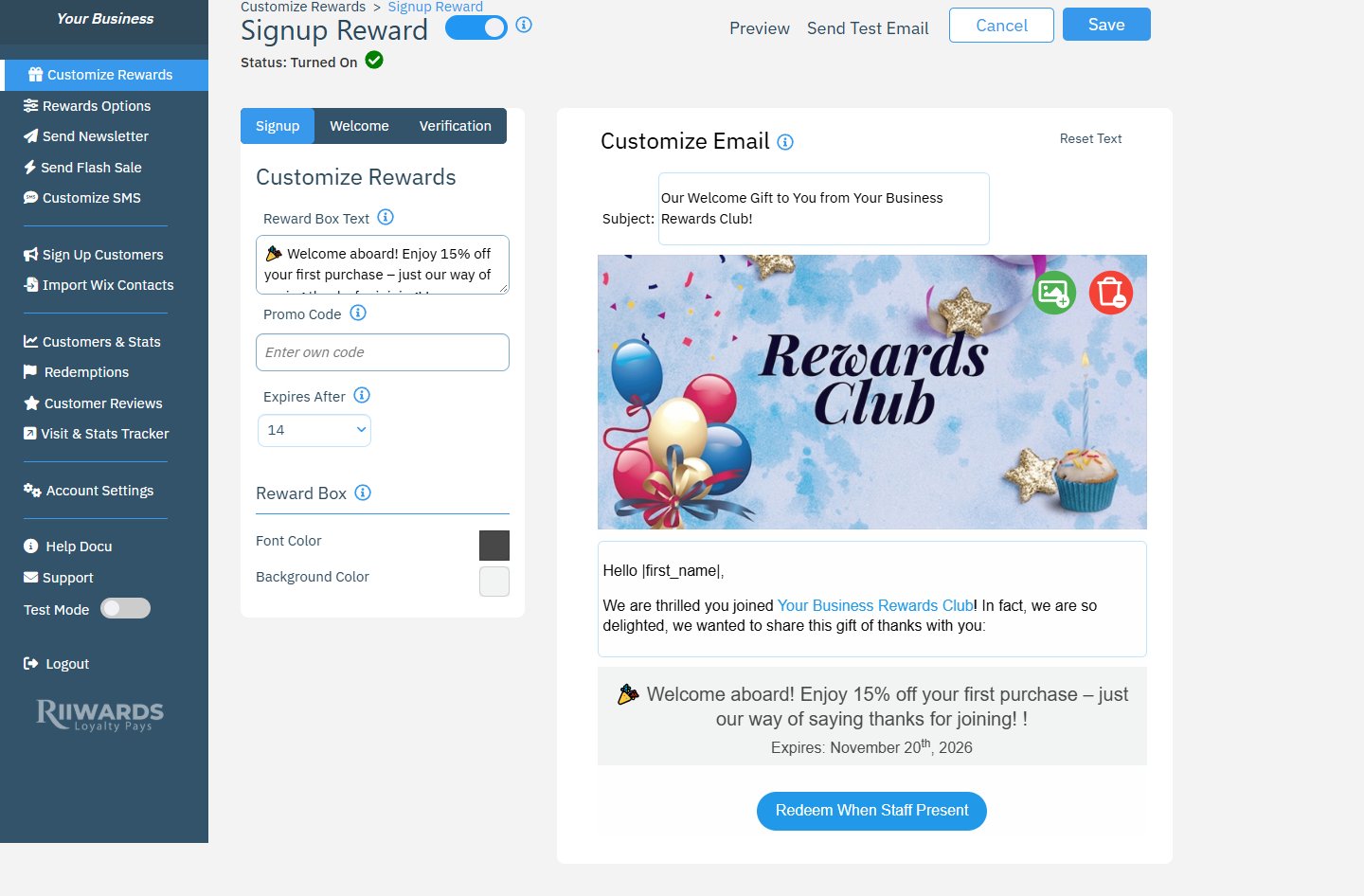
The reward email editor: reward settings on the left, the email on the right
Describes the reward in up to 160 characters, on a single line. It is shown in the highlighted reward box in the email. For the signup and birthday rewards it also appears on your signup form. Email addresses, phone numbers and HTML are removed from this text.
Promo Code
Optional, up to 20 characters. Leave it blank and Rewards Club creates a unique code for tracking that customers do not see. Enter your own code if customers use it in your online store or point of sale. If your club redeems rewards online, a promo code is required and must match the code set up in your online store.
Send and expiry fields
Depend on the reward type: Expires After (signup and check-in), Send Before and Expires After the birthday or anniversary, or Send Date and Expire Date (monthly). See each reward’s page for the options.
Reward Box: Font Color / Background Color
Click a color square to change the text and background color of the reward box in the email.
Subject: the subject line customers see in their inbox.
Banner image: use the green image icon on the banner to upload a new image, or the red icon to remove it. Supported formats are JPG, JPEG and PNG. Images up to 1000 px wide or high work best.
Body text: click the text to edit it. A toolbar appears with undo and redo, paragraph styles, alignment, lists, bold and italic, font, size and color, and links.
Reward box and button: filled in automatically from your reward settings. When one-time use is on, the email shows a button such as Redeem When Staff Present.
Terms and footer: the small print comes from your rewards terms and conditions. The unsubscribe and privacy lines at the bottom are added automatically.
Click Reset Text to return the email to the default Rewards Club template.
Click Preview to see the subject and full email with sample values, such as a first name, filled in.
Email preview
2
Send a test
Click Send Test Email. Tick Business to send it to your account email, and enter another address in Other if you want. Click Send.
Send Test Email window
3
Save
When you are happy with the email, click Save.
Your logo, business name and contact details in emails come from Business info and Customize Club. Update them there and every email picks up the change.
{"docsConfig":{"theme":"mint","$schema":"https://mintlify.com/docs.json","name":"Riiwards","description":"Riiwards documentation: grow customer lists from every source and drive repeat visits with automated loyalty rewards.","colors":{"primary":"#00469F","light":"#0091C8","dark":"#00469F"},"logo":{"light":"https://mintcdn.com/riiwards/aY9icd3nI_KKv6m8/logo/light.svg?fit=max\u0026auto=format\u0026n=aY9icd3nI_KKv6m8\u0026q=85\u0026s=22318ec1d0dd98848b61d3f1016bef8b","dark":"https://mintcdn.com/riiwards/aY9icd3nI_KKv6m8/logo/dark.svg?fit=max\u0026auto=format\u0026n=aY9icd3nI_KKv6m8\u0026q=85\u0026s=86fe0c390ab54c52a01a511f9ae14dc9","href":"https://riiwards.net"},"favicon":"https://mintcdn.com/riiwards/aY9icd3nI_KKv6m8/favicon.png?fit=max\u0026auto=format\u0026n=aY9icd3nI_KKv6m8\u0026q=85\u0026s=013dcd4983152f48159948d600ba6022","background":{"color":{"dark":"#000000"}},"navbar":{"links":[{"href":"mailto:support@riiwards.com","label":"Support"}],"primary":{"type":"button","label":"Visit Riiwards","href":"https://riiwards.net"}},"footer":{"socials":{"website":"https://riiwards.net","facebook":"https://www.facebook.com/Riiwards","instagram":"https://www.instagram.com/riiwards","youtube":"https://www.youtube.com/@riiwards_com"}},"fonts":{"family":"Inter Tight"},"contextual":{"options":["copy","view","chatgpt","claude","perplexity","mcp","cursor","vscode"],"display":"header"},"styling":{"latex":false},"navigation":{"pages":[]}},"deployment":{"deploymentMetadataValue":{"subdomain":"riiwards","hasAudioNarration":false,"actualSubdomain":"riiwards","customDomains":["help.riiwards.com"],"gitSource":{"type":"artifacts","owner":"prod","repo":"6aee06a26bc4a0a1c2071140","deployBranch":"main","contentDirectory":"","isPrivate":true,"mountPath":"","label":"","_id":"6aee07db6bc4a0a1c20722dc"},"entitlements":{"AI_CHAT":{"status":"ENABLED"},"WEB_MCP":{"status":"ENABLED"},"NARRATION":{"status":"ENABLED"}},"buildId":"6aee1e481af8e5b3418ba8f9","clientVersion":"0.0.4076","searchFilterCounts":[{"language":"default","tag":"Rewards","count":10},{"language":"default","tag":"Getting started","count":7},{"language":"default","tag":"Account and billing","count":6},{"language":"default","tag":"Customers and reports","count":5},{"language":"default","tag":"Grow your list","count":4},{"language":"default","tag":"SMS","count":4},{"language":"default","tag":"Privacy and FAQ","count":3},{"language":"default","tag":"Visit Tracker","count":3},{"language":"default","tag":"Agencies","count":2},{"language":"default","tag":"Marketing","count":2}]},"assistantConfig":{"enableAskAiButton":false,"enableStarterQuestions":false,"enableContextualStarterQuestions":false,"enableAskAiSearchBar":true},"basePath":"","hasChatPermissions":true,"hasWebMcpPermissions":true,"toggles":[{"name":"kill-isr","enabled":true,"variant":{"name":"disabled","enabled":false,"feature_enabled":true},"impressionData":false},{"name":"agent-mintlify-slack","enabled":true,"variant":{"name":"disabled","enabled":false,"feature_enabled":true},"impressionData":false},{"name":"agent-integrations-settings","enabled":true,"variant":{"name":"disabled","enabled":false,"feature_enabled":true},"impressionData":false},{"name":"rbac-expansion","enabled":true,"variant":{"name":"disabled","enabled":false,"feature_enabled":true},"impressionData":false},{"name":"automations-pr-grouping","enabled":true,"variant":{"name":"disabled","enabled":false,"feature_enabled":true},"impressionData":false},{"name":"custom-prefix","enabled":true,"variant":{"name":"disabled","enabled":false,"feature_enabled":true},"impressionData":false},{"name":"analytics-v7","enabled":true,"variant":{"name":"disabled","enabled":false,"feature_enabled":true},"impressionData":false},{"name":"user-flows-analytics","enabled":true,"variant":{"name":"disabled","enabled":false,"feature_enabled":true},"impressionData":false},{"name":"no-publish-flow","enabled":true,"variant":{"name":"disabled","enabled":false,"feature_enabled":true},"impressionData":false},{"name":"workos-onboarding","enabled":true,"variant":{"name":"disabled","enabled":false,"feature_enabled":true},"impressionData":false},{"name":"llms-txt-v2","enabled":true,"variant":{"name":"disabled","enabled":false,"feature_enabled":true},"impressionData":false},{"name":"snapshot-serving-live","enabled":true,"variant":{"name":"disabled","enabled":false,"feature_enabled":true},"impressionData":false},{"name":"stripTemperatureMiddleware","enabled":true,"variant":{"name":"disabled","enabled":false,"feature_enabled":true},"impressionData":false},{"name":"support-platform-pylon-zendesk","enabled":true,"variant":{"name":"disabled","enabled":false,"feature_enabled":true},"impressionData":false},{"name":"snapshot-serving","enabled":true,"variant":{"name":"disabled","enabled":false,"feature_enabled":true},"impressionData":false},{"name":"instant-rollback","enabled":true,"variant":{"name":"disabled","enabled":false,"feature_enabled":true},"impressionData":false},{"name":"granular-notifications-server","enabled":true,"variant":{"name":"disabled","enabled":false,"feature_enabled":true},"impressionData":false},{"name":"granular-notifications","enabled":true,"variant":{"name":"disabled","enabled":false,"feature_enabled":true},"impressionData":false},{"name":"automations-fable","enabled":true,"variant":{"name":"disabled","enabled":false,"feature_enabled":true},"impressionData":false},{"name":"fixed-ai-action-pricing","enabled":true,"variant":{"name":"disabled","enabled":false,"feature_enabled":true},"impressionData":false},{"name":"automation-resolve-merge-conflict","enabled":true,"variant":{"name":"disabled","enabled":false,"feature_enabled":true},"impressionData":false},{"name":"scoped-publishing","enabled":true,"variant":{"name":"disabled","enabled":false,"feature_enabled":true},"impressionData":false},{"name":"mintql","enabled":true,"variant":{"name":"disabled","enabled":false,"feature_enabled":true},"impressionData":false},{"name":"page-level-analytics","enabled":true,"variant":{"name":"disabled","enabled":false,"feature_enabled":true},"impressionData":false},{"name":"editor-version-history-v2","enabled":true,"variant":{"name":"disabled","enabled":false,"feature_enabled":true},"impressionData":false},{"name":"billing-page-v2","enabled":true,"variant":{"name":"disabled","enabled":false,"feature_enabled":true},"impressionData":false},{"name":"full-page-search","enabled":true,"variant":{"name":"disabled","enabled":false,"feature_enabled":true},"impressionData":false},{"name":"workspace-projects","enabled":true,"variant":{"name":"disabled","enabled":false,"feature_enabled":true},"impressionData":false},{"name":"assistant-v5","enabled":true,"variant":{"name":"disabled","enabled":false,"feature_enabled":true},"impressionData":false},{"name":"fork-pr-previews","enabled":true,"variant":{"name":"disabled","enabled":false,"feature_enabled":true},"impressionData":false},{"name":"revalidation-jwt","enabled":true,"variant":{"name":"disabled","enabled":false,"feature_enabled":true},"impressionData":false},{"name":"workos-sso-scim","enabled":true,"variant":{"name":"disabled","enabled":false,"feature_enabled":true},"impressionData":false},{"name":"hobby-abuse-scan","enabled":true,"variant":{"name":"disabled","enabled":false,"feature_enabled":true},"impressionData":false},{"name":"dashboard-inbox","enabled":true,"variant":{"name":"disabled","enabled":false,"feature_enabled":true},"impressionData":false},{"name":"workos-signup","enabled":true,"variant":{"name":"disabled","enabled":false,"feature_enabled":true},"impressionData":false},{"name":"turbopuffer-dual-write","enabled":true,"variant":{"name":"disabled","enabled":false,"feature_enabled":true},"impressionData":false},{"name":"workos-enabled","enabled":true,"variant":{"name":"disabled","enabled":false,"feature_enabled":true},"impressionData":false},{"name":"approve-review-flow","enabled":true,"variant":{"name":"disabled","enabled":false,"feature_enabled":true},"impressionData":false},{"name":"sso-setup-deadline-banner","enabled":true,"variant":{"name":"disabled","enabled":false,"feature_enabled":true},"impressionData":false},{"name":"turbopuffer-serve","enabled":true,"variant":{"name":"disabled","enabled":false,"feature_enabled":true},"impressionData":false},{"name":"live-agents","enabled":true,"variant":{"name":"disabled","enabled":false,"feature_enabled":true},"impressionData":false},{"name":"comment-mode","enabled":true,"variant":{"name":"disabled","enabled":false,"feature_enabled":true},"impressionData":false}],"googleFontsInlined":true},"customCss":[],"page":{"pagePath":"rewards/edit-reward-emails","slug":"/rewards/edit-reward-emails","pageMetadata":{"title":"Edit reward email text, images and promo codes","sidebarTitle":"Edit reward emails","description":"A field-by-field guide to the reward email editor: reward box text, promo codes, colors, subject, banner images, placeholders, preview and test emails.","icon":"pencil","keywords":["email editor","reward email","promo code","banner image","placeholders","preview","test email"],"href":"/rewards/edit-reward-emails"},"description":{"compiledSource":"\"use strict\";\nconst {jsx: _jsx} = arguments[0];\nconst {useMDXComponents: _provideComponents} = arguments[0];\nfunction _createMdxContent(props) {\n const _components = {\n p: \"p\",\n ..._provideComponents(),\n ...props.components\n };\n return _jsx(_components.p, {\n children: \"A field-by-field guide to the reward email editor: reward box text, promo codes, colors, subject, banner images, placeholders, preview and test emails.\"\n });\n}\nfunction MDXContent(props = {}) {\n const {wrapper: MDXLayout} = {\n ..._provideComponents(),\n ...props.components\n };\n return MDXLayout ? _jsx(MDXLayout, {\n ...props,\n children: _jsx(_createMdxContent, {\n ...props\n })\n }) : _createMdxContent(props);\n}\nreturn {\n default: MDXContent\n};\n","frontmatter":{},"scope":{}},"pageType":"default","mdx":{"mdxSource":{"compiledSource":"\"use strict\";const{Fragment:_Fragment,jsx:_jsx,jsxs:_jsxs}=arguments[0];const{useMDXComponents:_provideComponents}=arguments[0];function _createMdxContent(props){const _components={a:`a`,code:`code`,li:`li`,p:`p`,strong:`strong`,tbody:`tbody`,td:`td`,th:`th`,thead:`thead`,tr:`tr`,ul:`ul`,..._provideComponents(),...props.components},{Card,Columns,Frame,Heading,OptimizedImage,Step,Steps,Table,Tip}=_components;if(!Card)_missingMdxReference(`Card`,true);if(!Columns)_missingMdxReference(`Columns`,true);if(!Frame)_missingMdxReference(`Frame`,true);if(!Heading)_missingMdxReference(`Heading`,true);if(!OptimizedImage)_missingMdxReference(`OptimizedImage`,true);if(!Step)_missingMdxReference(`Step`,true);if(!Steps)_missingMdxReference(`Steps`,true);if(!Table)_missingMdxReference(`Table`,true);if(!Tip)_missingMdxReference(`Tip`,true);return _jsxs(_Fragment,{children:[_jsx(_components.p,{children:`Every reward in Rewards Club (signup, birthday, anniversary, monthly and check-in) uses the same email editor. The left side controls the reward itself, and the right side is a live version of the email you can click and edit. This page explains every field and button so you can make your reward emails look and sound like your business.`}),`\n`,_jsxs(_components.p,{children:[`To open the editor, click `,_jsx(_components.strong,{children:`Customize Rewards`}),` in the left menu, then click `,_jsx(_components.strong,{children:`Edit`}),` on a reward card (or click a month under `,_jsx(_components.strong,{children:`Monthly Rewards`}),`).`]}),`\n`,_jsx(Frame,{caption:`The reward email editor: reward settings on the left, the email on the right`,children:_jsx(OptimizedImage,{src:`https://mintcdn.com/riiwards/mTvES1xpwmIHjJTD/images/reward-signup-edit.png?fit=max\u0026auto=format\u0026n=mTvES1xpwmIHjJTD\u0026q=85\u0026s=5e99705b23ff8d24f23970c129c0f295`,alt:`Reward email editor showing the header buttons, the Customize Rewards panel and the Customize Email panel`,\"data-og-width\":`1440`,width:`1440`,\"data-og-height\":`946`,height:`946`,\"data-path\":`images/reward-signup-edit.png`,\"data-optimize\":`true`,\"data-opv\":`3`,srcset:`https://mintcdn.com/riiwards/mTvES1xpwmIHjJTD/images/reward-signup-edit.png?w=280\u0026fit=max\u0026auto=format\u0026n=mTvES1xpwmIHjJTD\u0026q=85\u0026s=5c8f9d52cf0dbc135e1e40b347d5cc3c 280w, https://mintcdn.com/riiwards/mTvES1xpwmIHjJTD/images/reward-signup-edit.png?w=560\u0026fit=max\u0026auto=format\u0026n=mTvES1xpwmIHjJTD\u0026q=85\u0026s=6a4fb8d067e1f02a86837249867b0801 560w, https://mintcdn.com/riiwards/mTvES1xpwmIHjJTD/images/reward-signup-edit.png?w=840\u0026fit=max\u0026auto=format\u0026n=mTvES1xpwmIHjJTD\u0026q=85\u0026s=a012bf4fd5fa6762a53d3a2f738b6ab2 840w, https://mintcdn.com/riiwards/mTvES1xpwmIHjJTD/images/reward-signup-edit.png?w=1100\u0026fit=max\u0026auto=format\u0026n=mTvES1xpwmIHjJTD\u0026q=85\u0026s=6f544353c28840e9763b1a7ae9d83f9a 1100w, https://mintcdn.com/riiwards/mTvES1xpwmIHjJTD/images/reward-signup-edit.png?w=1650\u0026fit=max\u0026auto=format\u0026n=mTvES1xpwmIHjJTD\u0026q=85\u0026s=8ddae91cca81852a5b9d62006d5bb219 1650w, https://mintcdn.com/riiwards/mTvES1xpwmIHjJTD/images/reward-signup-edit.png?w=2500\u0026fit=max\u0026auto=format\u0026n=mTvES1xpwmIHjJTD\u0026q=85\u0026s=02fc629b3f592ba17fb0e14c05aff77f 2500w`})}),`\n`,_jsx(Heading,{level:`2`,id:`header-buttons`,children:`Header buttons`}),`\n`,_jsxs(Table,{children:[_jsx(_components.thead,{children:_jsxs(_components.tr,{children:[_jsx(_components.th,{children:`Control`}),_jsx(_components.th,{children:`What it does`})]})}),_jsxs(_components.tbody,{children:[_jsxs(_components.tr,{children:[_jsxs(_components.td,{children:[_jsx(_components.strong,{children:`On/off toggle`}),` (next to the reward name)`]}),_jsxs(_components.td,{children:[`Turns the reward emails on or off. The `,_jsx(_components.strong,{children:`Status`}),` line below shows `,_jsx(_components.strong,{children:`Turned On`}),` or `,_jsx(_components.strong,{children:`Turned Off`}),`.`]})]}),_jsxs(_components.tr,{children:[_jsx(_components.td,{children:_jsx(_components.strong,{children:`Preview`})}),_jsx(_components.td,{children:`Shows the email as a customer will see it, with sample values filled in. Includes unsaved changes.`})]}),_jsxs(_components.tr,{children:[_jsx(_components.td,{children:_jsx(_components.strong,{children:`Send Test Email`})}),_jsx(_components.td,{children:`Sends the email to yourself so you can check it in a real inbox. Includes unsaved changes.`})]}),_jsxs(_components.tr,{children:[_jsx(_components.td,{children:_jsx(_components.strong,{children:`Cancel`})}),_jsx(_components.td,{children:`Discards your unsaved changes.`})]}),_jsxs(_components.tr,{children:[_jsx(_components.td,{children:_jsx(_components.strong,{children:`Save`})}),_jsx(_components.td,{children:`Saves your changes. It becomes active once you change something.`})]})]})]}),`\n`,_jsx(Heading,{level:`2`,id:`reward-settings-left-side`,children:`Reward settings (left side)`}),`\n`,_jsxs(Table,{children:[_jsx(_components.thead,{children:_jsxs(_components.tr,{children:[_jsx(_components.th,{children:`Field`}),_jsx(_components.th,{children:`Details`})]})}),_jsxs(_components.tbody,{children:[_jsxs(_components.tr,{children:[_jsx(_components.td,{children:_jsx(_components.strong,{children:`Reward Box Text`})}),_jsx(_components.td,{children:`Describes the reward in up to 160 characters, on a single line. It is shown in the highlighted reward box in the email. For the signup and birthday rewards it also appears on your signup form. Email addresses, phone numbers and HTML are removed from this text.`})]}),_jsxs(_components.tr,{children:[_jsx(_components.td,{children:_jsx(_components.strong,{children:`Promo Code`})}),_jsx(_components.td,{children:`Optional, up to 20 characters. Leave it blank and Rewards Club creates a unique code for tracking that customers do not see. Enter your own code if customers use it in your online store or point of sale. If your club redeems rewards online, a promo code is required and must match the code set up in your online store.`})]}),_jsxs(_components.tr,{children:[_jsx(_components.td,{children:_jsx(_components.strong,{children:`Send and expiry fields`})}),_jsxs(_components.td,{children:[`Depend on the reward type: `,_jsx(_components.strong,{children:`Expires After`}),` (signup and check-in), `,_jsx(_components.strong,{children:`Send Before`}),` and `,_jsx(_components.strong,{children:`Expires After`}),` the birthday or anniversary, or `,_jsx(_components.strong,{children:`Send Date`}),` and `,_jsx(_components.strong,{children:`Expire Date`}),` (monthly). See each reward’s page for the options.`]})]}),_jsxs(_components.tr,{children:[_jsx(_components.td,{children:_jsx(_components.strong,{children:`Reward Box: Font Color / Background Color`})}),_jsx(_components.td,{children:`Click a color square to change the text and background color of the reward box in the email.`})]})]})]}),`\n`,_jsx(Heading,{level:`2`,id:`email-content-right-side`,children:`Email content (right side)`}),`\n`,_jsx(_components.p,{children:`Click any part of the email to edit it.`}),`\n`,_jsxs(_components.ul,{children:[`\n`,_jsxs(_components.li,{children:[_jsx(_components.strong,{children:`Subject:`}),` the subject line customers see in their inbox.`]}),`\n`,_jsxs(_components.li,{children:[_jsx(_components.strong,{children:`Banner image:`}),` use the green image icon on the banner to upload a new image, or the red icon to remove it. Supported formats are JPG, JPEG and PNG. Images up to 1000 px wide or high work best.`]}),`\n`,_jsxs(_components.li,{children:[_jsx(_components.strong,{children:`Body text:`}),` click the text to edit it. A toolbar appears with undo and redo, paragraph styles, alignment, lists, bold and italic, font, size and color, and links.`]}),`\n`,_jsxs(_components.li,{children:[_jsx(_components.strong,{children:`Reward box and button:`}),` filled in automatically from your reward settings. When one-time use is on, the email shows a button such as `,_jsx(_components.strong,{children:`Redeem When Staff Present`}),`.`]}),`\n`,_jsxs(_components.li,{children:[_jsx(_components.strong,{children:`Terms and footer:`}),` the small print comes from your `,_jsx(_components.a,{href:`/rewards/terms-and-conditions`,children:`rewards terms and conditions`}),`. The unsubscribe and privacy lines at the bottom are added automatically.`]}),`\n`]}),`\n`,_jsxs(_components.p,{children:[`Click `,_jsx(_components.strong,{children:`Reset Text`}),` to return the email to the default Rewards Club template.`]}),`\n`,_jsx(Heading,{level:`2`,id:`placeholders`,children:`Placeholders`}),`\n`,_jsx(_components.p,{children:`Placeholders are words between vertical bars that Rewards Club replaces with real values when the email is sent. Keep them exactly as written.`}),`\n`,_jsxs(_components.ul,{children:[`\n`,_jsxs(_components.li,{children:[_jsx(_components.code,{children:`|first_name|`}),`: the customer’s first name.`]}),`\n`,_jsxs(_components.li,{children:[_jsx(_components.code,{children:`|birthday|`}),`: the customer’s birthday month (birthday reward).`]}),`\n`,_jsxs(_components.li,{children:[_jsx(_components.code,{children:`|anniversary|`}),`: the customer’s anniversary month (anniversary reward).`]}),`\n`,_jsxs(_components.li,{children:[_jsx(_components.code,{children:`|birthday_reward|`}),`: your current birthday reward text (welcome email).`]}),`\n`]}),`\n`,_jsx(Heading,{level:`2`,id:`preview-and-test-before-you-save`,children:`Preview and test before you save`}),`\n`,_jsxs(Steps,{children:[_jsxs(Step,{title:`Preview the email`,children:[_jsxs(_components.p,{children:[`Click `,_jsx(_components.strong,{children:`Preview`}),` to see the subject and full email with sample values, such as a first name, filled in.`]}),_jsx(Frame,{caption:`Email preview`,children:_jsx(OptimizedImage,{src:`https://mintcdn.com/riiwards/mTvES1xpwmIHjJTD/images/modal-reward-preview.png?fit=max\u0026auto=format\u0026n=mTvES1xpwmIHjJTD\u0026q=85\u0026s=313b023e7f3d1ca19289f1d1c388a7b5`,alt:`Signup Email Preview window showing the subject line, banner and reward box`,\"data-og-width\":`1440`,width:`1440`,\"data-og-height\":`900`,height:`900`,\"data-path\":`images/modal-reward-preview.png`,\"data-optimize\":`true`,\"data-opv\":`3`,srcset:`https://mintcdn.com/riiwards/mTvES1xpwmIHjJTD/images/modal-reward-preview.png?w=280\u0026fit=max\u0026auto=format\u0026n=mTvES1xpwmIHjJTD\u0026q=85\u0026s=1f5e1539ad8b8661d9a0421e4222ac79 280w, https://mintcdn.com/riiwards/mTvES1xpwmIHjJTD/images/modal-reward-preview.png?w=560\u0026fit=max\u0026auto=format\u0026n=mTvES1xpwmIHjJTD\u0026q=85\u0026s=9306ceb5fa525e747515a6fe4ad3cf1d 560w, https://mintcdn.com/riiwards/mTvES1xpwmIHjJTD/images/modal-reward-preview.png?w=840\u0026fit=max\u0026auto=format\u0026n=mTvES1xpwmIHjJTD\u0026q=85\u0026s=d415dccab1e91cae91c85d550846b57f 840w, https://mintcdn.com/riiwards/mTvES1xpwmIHjJTD/images/modal-reward-preview.png?w=1100\u0026fit=max\u0026auto=format\u0026n=mTvES1xpwmIHjJTD\u0026q=85\u0026s=4cb0d5dbe9410ad1262cdc2197df23cd 1100w, https://mintcdn.com/riiwards/mTvES1xpwmIHjJTD/images/modal-reward-preview.png?w=1650\u0026fit=max\u0026auto=format\u0026n=mTvES1xpwmIHjJTD\u0026q=85\u0026s=70841204248879ce8ca1ff38ad90da4e 1650w, https://mintcdn.com/riiwards/mTvES1xpwmIHjJTD/images/modal-reward-preview.png?w=2500\u0026fit=max\u0026auto=format\u0026n=mTvES1xpwmIHjJTD\u0026q=85\u0026s=e81b6b9af2dbf476efcc8cf1bf0dec19 2500w`})})]}),_jsxs(Step,{title:`Send a test`,children:[_jsxs(_components.p,{children:[`Click `,_jsx(_components.strong,{children:`Send Test Email`}),`. Tick `,_jsx(_components.strong,{children:`Business`}),` to send it to your account email, and enter another address in `,_jsx(_components.strong,{children:`Other`}),` if you want. Click `,_jsx(_components.strong,{children:`Send`}),`.`]}),_jsx(Frame,{caption:`Send Test Email window`,children:_jsx(OptimizedImage,{src:`https://mintcdn.com/riiwards/mTvES1xpwmIHjJTD/images/modal-send-test-email.png?fit=max\u0026auto=format\u0026n=mTvES1xpwmIHjJTD\u0026q=85\u0026s=05685077fdbdda8912f364444a8dcab1`,alt:`Send Test Email window with a Business email checkbox, an Other email field and Cancel and Send buttons`,\"data-og-width\":`1440`,width:`1440`,\"data-og-height\":`900`,height:`900`,\"data-path\":`images/modal-send-test-email.png`,\"data-optimize\":`true`,\"data-opv\":`3`,srcset:`https://mintcdn.com/riiwards/mTvES1xpwmIHjJTD/images/modal-send-test-email.png?w=280\u0026fit=max\u0026auto=format\u0026n=mTvES1xpwmIHjJTD\u0026q=85\u0026s=2f28732c2877dcf2c7b6fad468e647af 280w, https://mintcdn.com/riiwards/mTvES1xpwmIHjJTD/images/modal-send-test-email.png?w=560\u0026fit=max\u0026auto=format\u0026n=mTvES1xpwmIHjJTD\u0026q=85\u0026s=ccda6e9f50f4841471f12ca650c4286f 560w, https://mintcdn.com/riiwards/mTvES1xpwmIHjJTD/images/modal-send-test-email.png?w=840\u0026fit=max\u0026auto=format\u0026n=mTvES1xpwmIHjJTD\u0026q=85\u0026s=53765b8b2b92507aa4da7f0c8a47817a 840w, https://mintcdn.com/riiwards/mTvES1xpwmIHjJTD/images/modal-send-test-email.png?w=1100\u0026fit=max\u0026auto=format\u0026n=mTvES1xpwmIHjJTD\u0026q=85\u0026s=e8052fa0be7fbd69647a875ad262f5b7 1100w, https://mintcdn.com/riiwards/mTvES1xpwmIHjJTD/images/modal-send-test-email.png?w=1650\u0026fit=max\u0026auto=format\u0026n=mTvES1xpwmIHjJTD\u0026q=85\u0026s=277fc1650ba3b496ae28c750de14ed7c 1650w, https://mintcdn.com/riiwards/mTvES1xpwmIHjJTD/images/modal-send-test-email.png?w=2500\u0026fit=max\u0026auto=format\u0026n=mTvES1xpwmIHjJTD\u0026q=85\u0026s=5b5038d9194560c45539b5acfa705b2d 2500w`})})]}),_jsx(Step,{title:`Save`,children:_jsxs(_components.p,{children:[`When you are happy with the email, click `,_jsx(_components.strong,{children:`Save`}),`.`]})})]}),`\n`,_jsx(Tip,{children:_jsxs(_components.p,{children:[`Your logo, business name and contact details in emails come from `,_jsx(_components.a,{href:`/account/business-info`,children:`Business info`}),` and `,_jsx(_components.a,{href:`/account/customize-club`,children:`Customize Club`}),`. Update them there and every email picks up the change.`]})}),`\n`,_jsx(Heading,{level:`2`,id:`related`,children:`Related`}),`\n`,_jsxs(Columns,{cols:2,children:[_jsx(Card,{title:`Rewards overview`,icon:`gift`,href:`/rewards/overview`,children:_jsx(_components.p,{children:`All reward types and their status.`})}),_jsx(Card,{title:`Terms and conditions`,icon:`file-text`,href:`/rewards/terms-and-conditions`,children:_jsx(_components.p,{children:`Edit the small print in every reward email.`})}),_jsx(Card,{title:`How redemption works`,icon:`badge-check`,href:`/rewards/how-redemption-works`,children:_jsx(_components.p,{children:`In-store buttons and online promo codes.`})}),_jsx(Card,{title:`Email deliverability`,icon:`mail-check`,href:`/privacy/email-deliverability`,children:_jsx(_components.p,{children:`Help your emails reach the inbox.`})})]})]})}function MDXContent(props={}){const{wrapper:MDXLayout}={..._provideComponents(),...props.components};return MDXLayout?_jsx(MDXLayout,{...props,children:_jsx(_createMdxContent,{...props})}):_createMdxContent(props)}return{default:MDXContent};function _missingMdxReference(id,component){throw new Error(`Expected `+(component?`component`:`object`)+\" `\"+id+\"` to be defined: you likely forgot to import, pass, or provide it.\")}","frontmatter":{},"scope":{"config":{},"pageMetadata":{"title":"Edit reward email text, images and promo codes","sidebarTitle":"Edit reward emails","description":"A field-by-field guide to the reward email editor: reward box text, promo codes, colors, subject, banner images, placeholders, preview and test emails.","icon":"pencil","keywords":["email editor","reward email","promo code","banner image","placeholders","preview","test email"],"href":"/rewards/edit-reward-emails"}}},"mdxSourceWithNoJs":null},"mdxExtracts":{"tableOfContents":[{"title":"Header buttons","slug":"header-buttons","depth":2,"children":[]},{"title":"Reward settings (left side)","slug":"reward-settings-left-side","depth":2,"children":[]},{"title":"Email content (right side)","slug":"email-content-right-side","depth":2,"children":[]},{"title":"Placeholders","slug":"placeholders","depth":2,"children":[]},{"title":"Preview and test before you save","slug":"preview-and-test-before-you-save","depth":2,"children":[]},{"title":"Related","slug":"related","depth":2,"children":[]}],"codeExamples":{}},"jsLinks":[],"subdomain":"riiwards","siteName":"Riiwards","title":"Edit reward email text, images and promo codes - Riiwards","navMaps":{"firstHrefInVersion":{},"firstHrefInLanguage":{}},"lastModified":"2026-11-06T18:37:12.688Z","originalFileLocation":"rewards/edit-reward-emails.mdx"},"headHtml":"\u003cscript data-mint-head>(function(){var d=document.documentElement,p=null;if(!p){try{p=localStorage.getItem(\"isDarkMode\")}catch(e){}if(p==='true')p='dark';else if(p==='false')p='light';if(p!=='light'\u0026\u0026p!=='dark'\u0026\u0026p!=='system')p=\"system\"}var r=p==='system'?(matchMedia(\"(prefers-color-scheme: dark)\").matches?'dark':'light'):p;d.classList.remove(r==='dark'?'light':'dark');d.classList.add(r);d.setAttribute(\"data-theme-preference\",p)})();\u003c/script>\u003cmeta data-mint-head name=\"description\" content=\"A field-by-field guide to the reward email editor: reward box text, promo codes, colors, subject, banner images, placeholders, preview and test emails.\">\u003cmeta data-mint-head name=\"application-name\" content=\"Riiwards\">\u003cmeta data-mint-head name=\"generator\" content=\"Mintlify\">\u003clink data-mint-head rel=\"icon\" type=\"image/png\" sizes=\"192x192\" href=\"/mintlify-assets/_mintlify/favicons/riiwards/Mo_Yo-NUyR9IxSoJ/_generated/favicon/android-chrome-192x192.png\" media=\"(prefers-color-scheme: light)\">\u003clink data-mint-head rel=\"apple-touch-icon\" type=\"image/png\" sizes=\"180x180\" href=\"/mintlify-assets/_mintlify/favicons/riiwards/Mo_Yo-NUyR9IxSoJ/_generated/favicon/apple-touch-icon.png\">\u003clink data-mint-head rel=\"icon\" type=\"image/png\" sizes=\"16x16\" href=\"/mintlify-assets/_mintlify/favicons/riiwards/Mo_Yo-NUyR9IxSoJ/_generated/favicon/favicon-16x16.png\" media=\"(prefers-color-scheme: light)\">\u003clink data-mint-head rel=\"icon\" type=\"image/png\" sizes=\"32x32\" href=\"/mintlify-assets/_mintlify/favicons/riiwards/Mo_Yo-NUyR9IxSoJ/_generated/favicon/favicon-32x32.png\" media=\"(prefers-color-scheme: light)\">\u003clink data-mint-head rel=\"shortcut icon\" type=\"image/x-icon\" href=\"/mintlify-assets/_mintlify/favicons/riiwards/Mo_Yo-NUyR9IxSoJ/_generated/favicon/favicon.ico\" media=\"(prefers-color-scheme: light)\">\u003clink data-mint-head rel=\"icon\" type=\"image/png\" sizes=\"192x192\" href=\"/mintlify-assets/_mintlify/favicons/riiwards/Mo_Yo-NUyR9IxSoJ/_generated/favicon-dark/android-chrome-192x192.png\" media=\"(prefers-color-scheme: dark)\">\u003clink data-mint-head rel=\"icon\" type=\"image/png\" sizes=\"16x16\" href=\"/mintlify-assets/_mintlify/favicons/riiwards/Mo_Yo-NUyR9IxSoJ/_generated/favicon-dark/favicon-16x16.png\" media=\"(prefers-color-scheme: dark)\">\u003clink data-mint-head rel=\"icon\" type=\"image/png\" sizes=\"32x32\" href=\"/mintlify-assets/_mintlify/favicons/riiwards/Mo_Yo-NUyR9IxSoJ/_generated/favicon-dark/favicon-32x32.png\" media=\"(prefers-color-scheme: dark)\">\u003clink data-mint-head rel=\"shortcut icon\" type=\"image/x-icon\" href=\"/mintlify-assets/_mintlify/favicons/riiwards/Mo_Yo-NUyR9IxSoJ/_generated/favicon-dark/favicon.ico\" media=\"(prefers-color-scheme: dark)\">\u003cmeta data-mint-head property=\"og:title\" content=\"Edit reward email text, images and promo codes - Riiwards\">\u003cmeta data-mint-head property=\"og:description\" content=\"A field-by-field guide to the reward email editor: reward box text, promo codes, colors, subject, banner images, placeholders, preview and test emails.\">\u003cmeta data-mint-head property=\"og:site_name\" content=\"Riiwards\">\u003cmeta data-mint-head property=\"og:url\" content=\"https://help.riiwards.com/rewards/edit-reward-emails\">\u003cmeta data-mint-head property=\"og:type\" content=\"website\">\u003cmeta data-mint-head property=\"og:image\" content=\"https://riiwards.mintlify.site/_mintlify/api/og/v2?division=Rewards\u0026amp;title=Edit+reward+email+text%2C+images+and+promo+codes\u0026amp;description=A+field-by-field+guide+to+the+reward+email+editor%3A+reward+box+text%2C+promo+codes%2C+colors%2C+subject%2C+banner+images%2C+placeholders%2C+preview+and+test+emails.\u0026amp;theme=d1217e1e18a443b9ad3d3ebd\u0026amp;signature=c96265280a4a5fbe41cd3a2d19b272571ab8008bab31bc9a9464c3738f447977\">\u003cmeta data-mint-head property=\"og:image:width\" content=\"1200\">\u003cmeta data-mint-head property=\"og:image:height\" content=\"630\">\u003cmeta data-mint-head name=\"twitter:card\" content=\"summary_large_image\">\u003cmeta data-mint-head name=\"twitter:title\" content=\"Edit reward email text, images and promo codes - Riiwards\">\u003cmeta data-mint-head name=\"twitter:description\" content=\"A field-by-field guide to the reward email editor: reward box text, promo codes, colors, subject, banner images, placeholders, preview and test emails.\">\u003cmeta data-mint-head name=\"twitter:image\" content=\"https://riiwards.mintlify.site/_mintlify/api/og/v2?division=Rewards\u0026amp;title=Edit+reward+email+text%2C+images+and+promo+codes\u0026amp;description=A+field-by-field+guide+to+the+reward+email+editor%3A+reward+box+text%2C+promo+codes%2C+colors%2C+subject%2C+banner+images%2C+placeholders%2C+preview+and+test+emails.\u0026amp;theme=d1217e1e18a443b9ad3d3ebd\u0026amp;signature=c96265280a4a5fbe41cd3a2d19b272571ab8008bab31bc9a9464c3738f447977\">\u003cmeta data-mint-head name=\"twitter:image:width\" content=\"1200\">\u003cmeta data-mint-head name=\"twitter:image:height\" content=\"630\">\u003cmeta data-mint-head name=\"msapplication-config\" content=\"/mintlify-assets/_mintlify/favicons/riiwards/Mo_Yo-NUyR9IxSoJ/_generated/favicon/browserconfig.xml\">\u003cmeta data-mint-head name=\"apple-mobile-web-app-title\" content=\"Riiwards\">\u003cmeta data-mint-head name=\"msapplication-TileColor\" content=\"#00469F\">\u003clink data-mint-head rel=\"canonical\" href=\"https://help.riiwards.com/rewards/edit-reward-emails\">\u003clink data-mint-head rel=\"alternate\" type=\"application/xml\" href=\"/sitemap.xml\">\u003clink data-mint-head rel=\"alternate\" type=\"text/markdown\" href=\"/rewards/edit-reward-emails.md\">\u003cscript data-mint-head type=\"application/ld+json\">{\"@context\":\"https://schema.org\",\"@graph\":[{\"@type\":\"Organization\",\"@id\":\"https://help.riiwards.com/#organization\",\"name\":\"Riiwards\",\"url\":\"https://help.riiwards.com\",\"logo\":{\"@type\":\"ImageObject\",\"url\":\"https://mintcdn.com/riiwards/aY9icd3nI_KKv6m8/logo/light.svg?fit=max\u0026auto=format\u0026n=aY9icd3nI_KKv6m8\u0026q=85\u0026s=22318ec1d0dd98848b61d3f1016bef8b\"}},{\"@type\":\"WebSite\",\"@id\":\"https://help.riiwards.com#website\",\"name\":\"Riiwards\",\"url\":\"https://help.riiwards.com\",\"publisher\":{\"@id\":\"https://help.riiwards.com/#organization\"}},{\"@type\":\"WebPage\",\"@id\":\"https://help.riiwards.com/rewards/edit-reward-emails#webpage\",\"url\":\"https://help.riiwards.com/rewards/edit-reward-emails\",\"name\":\"Edit reward email text, images and promo codes\",\"description\":\"A field-by-field guide to the reward email editor: reward box text, promo codes, colors, subject, banner images, placeholders, preview and test emails.\",\"dateModified\":\"2026-11-06T18:37:12.688Z\",\"isPartOf\":{\"@id\":\"https://help.riiwards.com#website\"},\"breadcrumb\":{\"@id\":\"https://help.riiwards.com/rewards/edit-reward-emails#breadcrumb\"}},{\"@type\":\"BreadcrumbList\",\"@id\":\"https://help.riiwards.com/rewards/edit-reward-emails#breadcrumb\",\"itemListElement\":[{\"@type\":\"ListItem\",\"position\":1,\"name\":\"Rewards\",\"item\":\"https://help.riiwards.com/rewards/overview\"},{\"@type\":\"ListItem\",\"position\":2,\"name\":\"Edit reward email text, images and promo codes\",\"item\":\"https://help.riiwards.com/rewards/edit-reward-emails\"}]},{\"@type\":[\"Article\",\"TechArticle\"],\"@id\":\"https://help.riiwards.com/rewards/edit-reward-emails#article\",\"headline\":\"Edit reward email text, images and promo codes\",\"name\":\"Edit reward email text, images and promo codes\",\"description\":\"A field-by-field guide to the reward email editor: reward box text, promo codes, colors, subject, banner images, placeholders, preview and test emails.\",\"url\":\"https://help.riiwards.com/rewards/edit-reward-emails\",\"mainEntityOfPage\":{\"@id\":\"https://help.riiwards.com/rewards/edit-reward-emails#webpage\"},\"dateModified\":\"2026-11-06T18:37:12.688Z\",\"keywords\":\"email editor, reward email, promo code, banner image, placeholders, preview, test email\",\"publisher\":{\"@id\":\"https://help.riiwards.com/#organization\"},\"isPartOf\":{\"@id\":\"https://help.riiwards.com#website\"}}]}\u003c/script>\u003cscript data-mint-head type=\"application/ld+json\">{\"@context\":\"https://schema.org\",\"@type\":\"WebSite\",\"name\":\"Riiwards\",\"creator\":{\"@type\":\"Organization\",\"name\":\"Mintlify\",\"url\":\"https://mintlify.com\"}}\u003c/script>","siteName":"Riiwards","nav":{"global":null,"pages":[{"group":"Getting started","pages":[{"title":"Rewards Club help center","sidebarTitle":"Welcome","icon":"house","href":"/index"},{"title":"How Rewards Club works","sidebarTitle":"How it works","icon":"workflow","href":"/getting-started/how-it-works"},{"title":"Set up Rewards Club on your Wix site","sidebarTitle":"Set up on Wix","icon":"layout-template","href":"/getting-started/set-up-on-wix"},{"title":"Create a Rewards Club account for any website","sidebarTitle":"Set up outside Wix","icon":"globe","href":"/getting-started/set-up-outside-wix"},{"title":"Tour of the Rewards Club dashboard","sidebarTitle":"Dashboard tour","icon":"layout-dashboard","href":"/getting-started/dashboard-tour"},{"title":"Rewards Club plans and the features they include","sidebarTitle":"Plans and features","icon":"layers","href":"/getting-started/plans-and-features"},{"title":"Test your club quickly with Test Mode","sidebarTitle":"Test Mode","icon":"flask-conical","href":"/getting-started/test-mode"}]},{"group":"Rewards","icon":"gift","pages":[{"title":"Set up and manage your automated rewards","sidebarTitle":"Rewards overview","icon":"gift","href":"/rewards/overview"},{"title":"Set up the signup reward and welcome emails","sidebarTitle":"Signup reward","icon":"user-plus","href":"/rewards/signup-reward"},{"title":"Send customers a reward before their birthday","sidebarTitle":"Birthday reward","icon":"cake","href":"/rewards/birthday-reward"},{"title":"Celebrate customer anniversaries with a reward","sidebarTitle":"Anniversary reward","icon":"heart","href":"/rewards/anniversary-reward"},{"title":"Create monthly rewards for holidays and seasons","sidebarTitle":"Monthly rewards","icon":"calendar-days","href":"/rewards/monthly-rewards"},{"title":"Reward repeat visits with check-in rewards","sidebarTitle":"Check-in rewards","description":"Set up check-in rewards, a digital punch card for in-person visits. Define rewards for visits 1 to 10 and milestones 25, 50 and 100, and learn how visits are counted.","icon":"repeat","href":"/rewards/check-in-rewards"},{"title":"Edit reward email text, images and promo codes","sidebarTitle":"Edit reward emails","icon":"pencil","href":"/rewards/edit-reward-emails"},{"title":"Control redemptions with Rewards Options","sidebarTitle":"Rewards Options","description":"Configure customer feedback, one-time use of rewards, the minimum time between redemptions, visit confirmation and amount spent tracking for in-person visits.","icon":"sliders-horizontal","href":"/rewards/rewards-options"},{"title":"Edit the terms and conditions in reward emails","sidebarTitle":"Terms and conditions","icon":"file-text","href":"/rewards/terms-and-conditions"},{"title":"How customers redeem rewards in store and online","sidebarTitle":"How redemption works","icon":"badge-check","href":"/rewards/how-redemption-works"}]},{"group":"Grow your list","icon":"users","pages":[{"title":"Sign up customers with QR codes, Smart Links and SMS","sidebarTitle":"Sign up customers","icon":"qr-code","href":"/grow/sign-up-customers"},{"title":"Add the Rewards Club signup form to your website","sidebarTitle":"Website signup form","icon":"layout-template","href":"/grow/website-signup-form"},{"title":"Invite your Wix contacts to join your Rewards Club","sidebarTitle":"Import Wix contacts","icon":"file-input","href":"/grow/import-wix-contacts"},{"title":"What customers see when they join your Rewards Club","sidebarTitle":"Customer signup flow","icon":"smartphone","href":"/grow/customer-signup-experience"}]},{"group":"Marketing","icon":"send","pages":[{"title":"Create, schedule and send email newsletters","sidebarTitle":"Newsletters","icon":"mail","href":"/marketing/newsletters"},{"title":"Send a Flash Sale text message to your SMS subscribers","sidebarTitle":"Flash sales","icon":"zap","href":"/marketing/flash-sales"}]},{"group":"SMS","icon":"message-square","pages":[{"title":"Set up SMS for text-to-join and reward reminders","sidebarTitle":"Set up SMS","icon":"message-square","href":"/sms/set-up-sms"},{"title":"Manage SMS name, sending hours and signup reminders","sidebarTitle":"SMS settings","icon":"settings","href":"/sms/sms-settings"},{"title":"Customize the text messages customers receive","sidebarTitle":"Customize SMS messages","icon":"message-square-text","href":"/sms/customize-sms-messages"},{"title":"How SMS billing works: plans, top-ups and Flash Sales","sidebarTitle":"SMS billing","icon":"receipt","href":"/sms/sms-billing"}]},{"group":"Customers and reports","icon":"chart-line","pages":[{"title":"View your customers and club stats","sidebarTitle":"Customers and stats","icon":"chart-line","href":"/customers/customers-and-stats"},{"title":"See a customer's history and resend rewards","sidebarTitle":"Customer history","icon":"history","href":"/customers/customer-history"},{"title":"Download your customer list as a CSV file","sidebarTitle":"Download list","icon":"download","href":"/customers/download-customer-list"},{"title":"Track which rewards your customers redeemed","sidebarTitle":"Redemptions","icon":"flag","href":"/customers/redemptions"},{"title":"Collect customer feedback and read reviews","sidebarTitle":"Reviews and feedback","icon":"star","href":"/customers/customer-reviews-and-feedback"}]},{"group":"Visit Tracker","icon":"smartphone","pages":[{"title":"Use the Visit Tracker at your counter","sidebarTitle":"Overview","icon":"smartphone","href":"/visit-tracker/overview"},{"title":"Confirm customer visits and redeem promo codes","sidebarTitle":"Confirm visits","icon":"circle-check","href":"/visit-tracker/confirm-visits"},{"title":"Read Visit Tracker reports on signups and redemptions","sidebarTitle":"Reports","icon":"chart-pie","href":"/visit-tracker/reports"}]},{"group":"Account and billing","icon":"settings","pages":[{"title":"Update your business information and login details","sidebarTitle":"Business info","icon":"store","href":"/account/business-info"},{"title":"Customize your club name, language, branding and links","sidebarTitle":"Customize club","icon":"palette","href":"/account/customize-club"},{"title":"Manage your Rewards Club subscription and billing","sidebarTitle":"Subscription and billing","icon":"credit-card","href":"/account/subscription-and-billing"},{"title":"Free plan limits and what happens at 100 subscribers","sidebarTitle":"Free plan","icon":"badge-check","href":"/account/free-plan"},{"title":"Cancel or reactivate your Rewards Club account","sidebarTitle":"Cancel account","icon":"circle-x","href":"/account/cancel-account"},{"title":"Get help, report an issue or leave a review","sidebarTitle":"Get help","icon":"life-buoy","href":"/account/get-help"}]},{"group":"Agencies","icon":"building","pages":[{"title":"Manage client Rewards Clubs from the Agency Dashboard","sidebarTitle":"Agency dashboard","icon":"building","href":"/agencies/agency-dashboard"},{"title":"Add new and existing businesses to your agency","sidebarTitle":"Add businesses","icon":"plus","href":"/agencies/add-businesses"}]},{"group":"Privacy and FAQ","icon":"shield-check","pages":[{"title":"Handle customer consent, corrections and deletions","sidebarTitle":"Privacy and consent","icon":"shield-check","href":"/privacy/gdpr-and-consent"},{"title":"Fix missing reward emails and improve delivery","sidebarTitle":"Email deliverability","icon":"mail-check","href":"/privacy/email-deliverability"},{"title":"Rewards Club frequently asked questions","sidebarTitle":"FAQ","icon":"circle-help","href":"/privacy/faq"}]}]},"basePath":"","title":"Edit reward email text, images and promo codes - Riiwards","buildId":"dpl_8LJbrAiZvr1K98WQNZXCyY5AvT34","deploymentId":"dpl_8LJbrAiZvr1K98WQNZXCyY5AvT34","dynamics":["07c022d89b","a74be98ba7"],"chunks":["Frame-NdetNziF.js","DynamicMarkdown-CD8713Yy.js","zoom-image-lightbox-DMoL6lHz.js","lightbox-handle-r17bVUz3.js"]}