

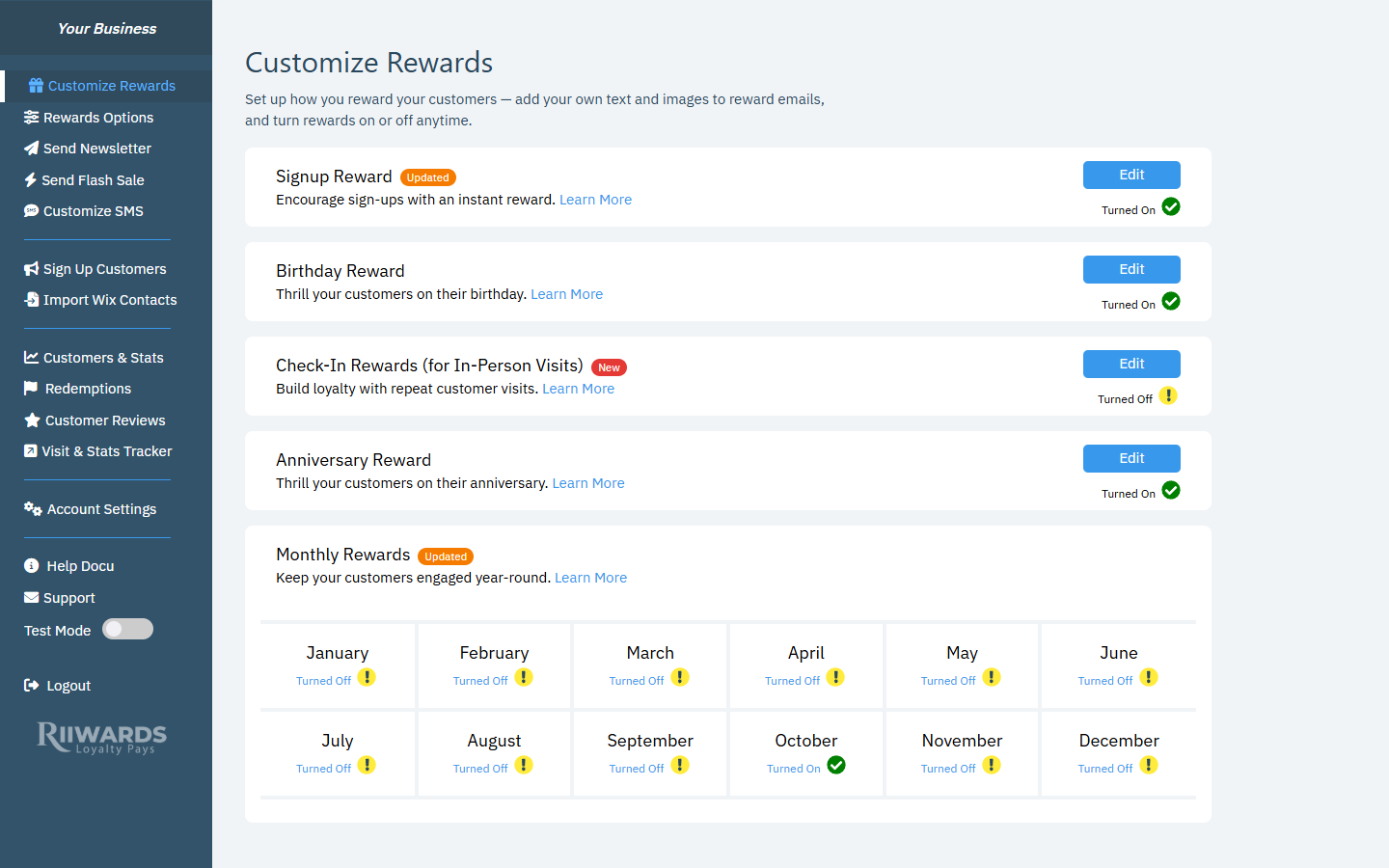
The Customize Rewards page with each reward type and its status
Reward types
Reward status
Each card shows a status under its Edit button:- Turned On with a green check: the reward is active and emails go out automatically.
- Turned Off with a yellow exclamation mark: nothing is sent for this reward.
Edit a reward
1
Open the reward
Click Edit on the reward card. For Monthly Rewards, click the month you want to change.
2
Change the reward and email
Update the reward text, promo code, timing and email content. See Edit reward emails for every field in the editor.
3
Turn the reward on or off
Use the toggle next to the reward name at the top of the editor. The status line under the name changes to Turned On or Turned Off.
4
Save
Click Save. The button becomes active once you have made a change. Click Cancel to discard your changes.
Plans and availability
Some reward types depend on your plan and how your customers redeem rewards:- Monthly Rewards are available on the Marketing+ plan or higher.
- Check-In Rewards are available on the Loyalty+ plan or higher, and only for businesses where customers redeem rewards in person. If your club is set to online redemption only, the Check-In card is hidden.
Settings that apply to all rewards, such as one-time use and the time between redemptions, are on the Rewards Options page.
Related
Edit reward emails
Change the reward text, promo code, images and email content.
Rewards Options
One-time use, redemption timing and visit confirmation.
How redemption works
How customers use rewards in store and online.
Terms and conditions
Edit the terms added to every reward email.