

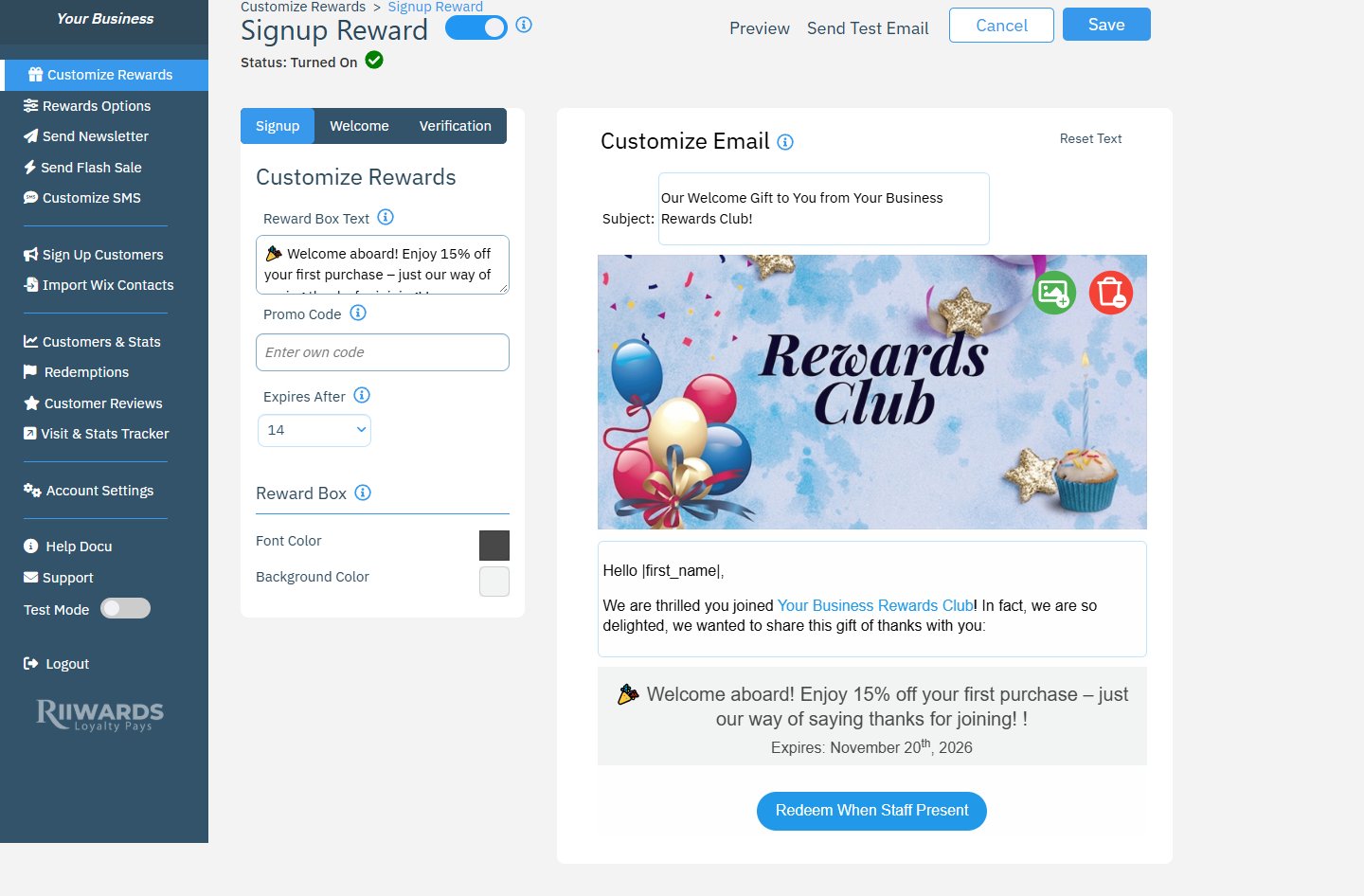
The Signup Reward editor with the Signup, Welcome and Verification tabs
Which emails new members receive
1
Verification email
When someone signs up, Rewards Club first sends a verification email with a Click Here to Verify button. Reward emails are only sent to verified email addresses.
2
Signup reward or welcome email
After the customer verifies their email:
- If the Signup Reward is Turned On, they receive the signup reward email.
- If the Signup Reward is Turned Off, they receive the welcome email instead. It thanks them for joining and tells them about your birthday reward.
The signup reward email can arrive with a short delay after the customer verifies, so they are encouraged to use it on their next visit. When Test Mode is on, it is sent right away.
Set up the signup reward
1
Open the Signup tab
The editor opens on the Signup tab.
2
Describe the reward
In Reward Box Text, describe the reward in up to 160 characters, for example “Enjoy 15% off your first purchase.” This text appears in the email and on your signup form.
3
Add a promo code (optional)
Enter your own code in Promo Code, or leave it blank. If it is blank, Rewards Club creates a unique code for tracking that customers do not see. If customers redeem rewards in your online store, a promo code is required. See How redemption works.
4
Choose when it expires
Pick a value in Expires After: 7, 14, 30, 45 or 60 days after the email is sent, or Never. The expiry date is printed in the email.
5
Style the reward box
Under Reward Box, set the Font Color and Background Color of the highlighted reward box in the email.
6
Edit the email and save
Change the subject, banner image and text on the right, turn the reward on with the toggle at the top, and click Save.
Customize the welcome email
Click the Welcome tab. The welcome email has no reward fields and no on/off toggle: it is sent automatically whenever the Signup Reward is turned off. Click any text on the right to change it. The default email mentions your current birthday reward using the|birthday_reward| placeholder.
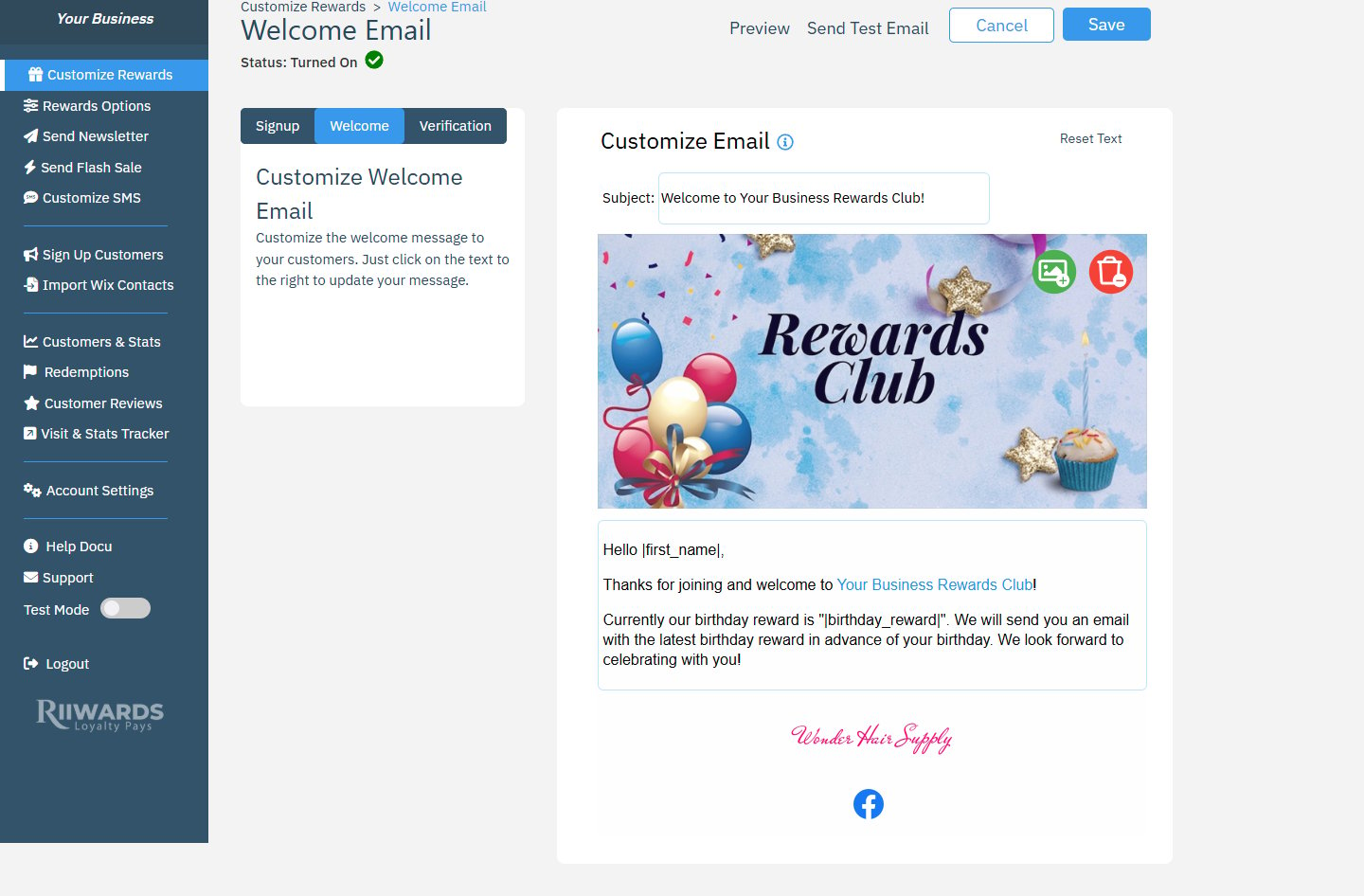
The Welcome tab
Customize the verification email
Click the Verification tab. This email is sent to every new member to confirm their email address. You can change the subject and text, but keep the Click Here to Verify button so customers can complete their signup.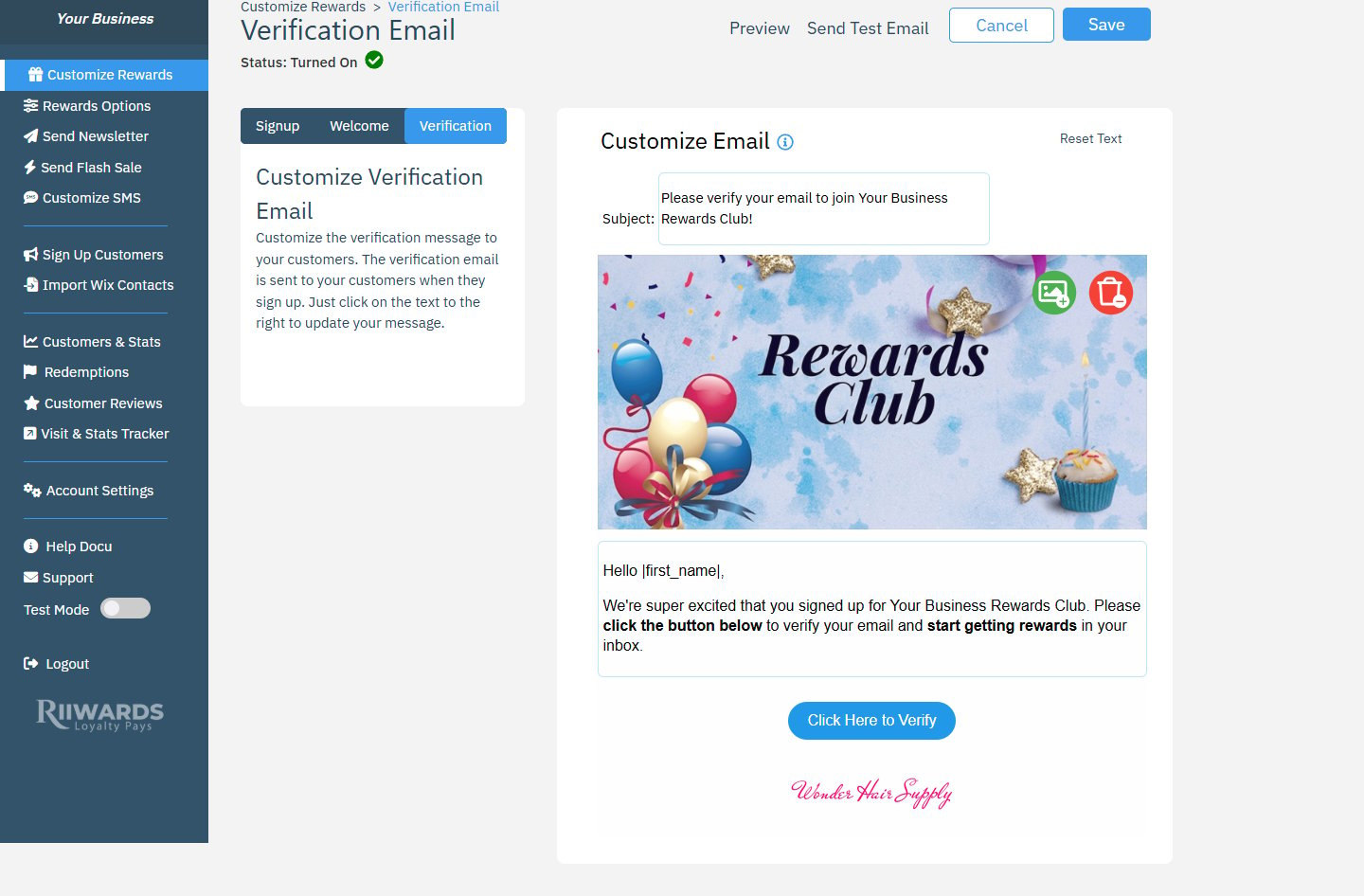
The Verification tab
Related
Edit reward emails
Every field and button in the email editor.
Birthday reward
Celebrate customers before their birthday.
Sign up customers
Share your QR codes and signup links.
What customers see when they join
The signup form from your customer’s side.