

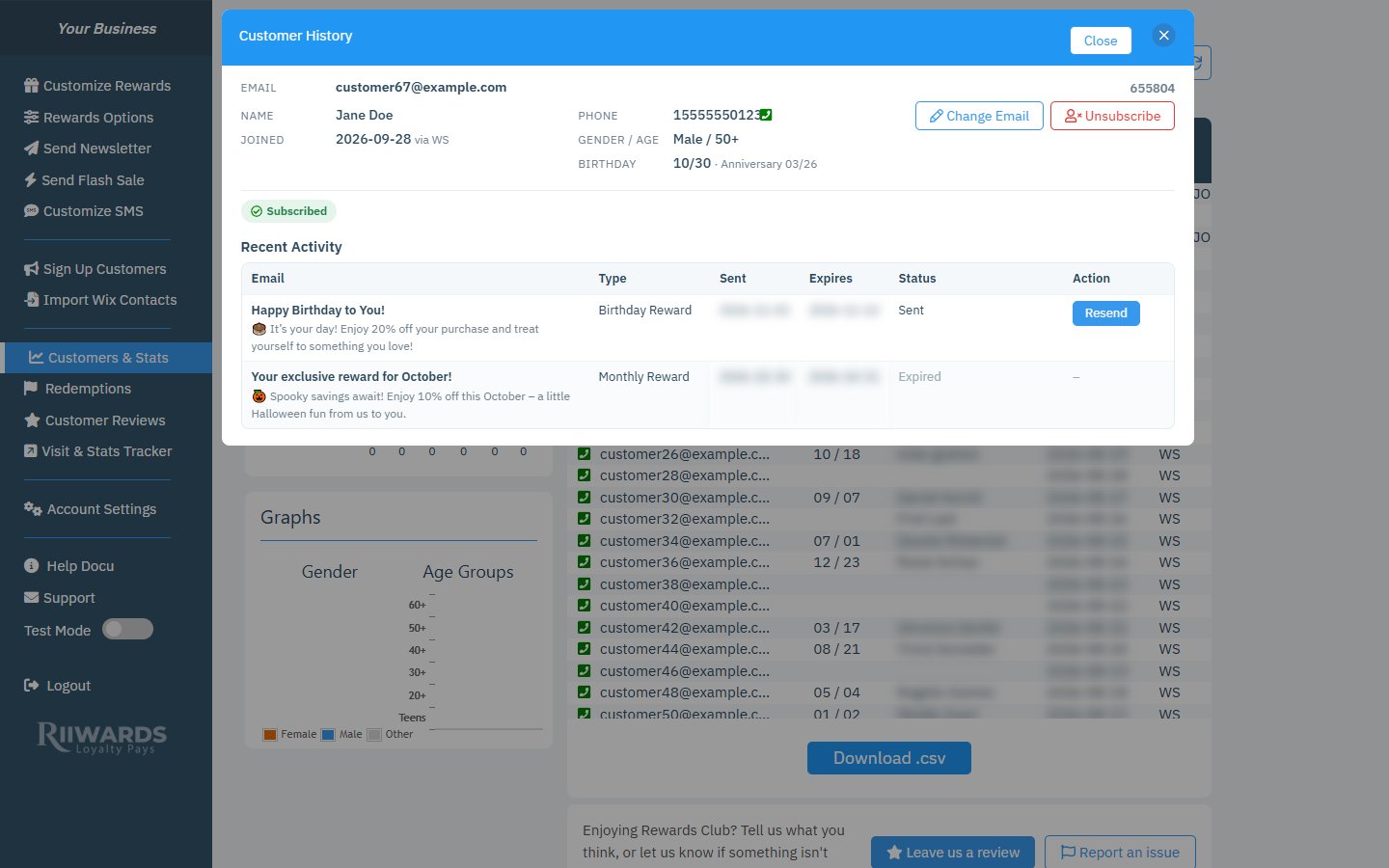
Customer History for one member
Profile
The top of the window shows what the customer shared when they joined:Status badges
Badges under the profile tell you at a glance whether the customer can receive your emails:Recent activity
The Recent Activity table lists the emails sent to this customer, such as rewards, verification and welcome messages, and newsletters.Resend a reward
Use Resend when a customer says they did not get a reward email.1
Find the reward
In Recent Activity, find the reward the customer is missing.
2
Click Resend
The same email is sent again. A counter such as 1/2 shows how many times you resent it.
Confirm a visit
If you turned on Confirm Visits with Visit Tracker in Rewards Options, a Confirm visit button appears next to rewards the customer redeemed or checked in for but whose visit is not confirmed yet. Click it to confirm the customer visited. You can also confirm visits at the counter with the Visit Tracker.Change a customer’s email
1
Click Change Email
A Change email address field opens.
2
Enter the new address
Type the correct email and click Send verification.
3
Wait for the customer to verify
We email the new address a verification link. The current address keeps receiving rewards until the new one is verified.
Unsubscribe a customer
Click Unsubscribe when a customer asks to stop receiving your emails. The message “Unsubscribed. Refresh the list to see changes.” confirms it. To fully delete a customer’s data, see Privacy and consent.Related
Customers and stats
Search your customer list.
Help your emails reach the inbox
Troubleshoot a missing reward email.
Confirm visits
Confirm visits at the counter.
Privacy and consent
Handle data and deletion requests.