

Flash Sales need an active SMS subscription. If SMS is not set up, the menu item is locked and shows “SMS Feature Required”. Click Enable Feature or see Set up SMS. SMS Flash Sales are part of the Marketing+ plan and higher.
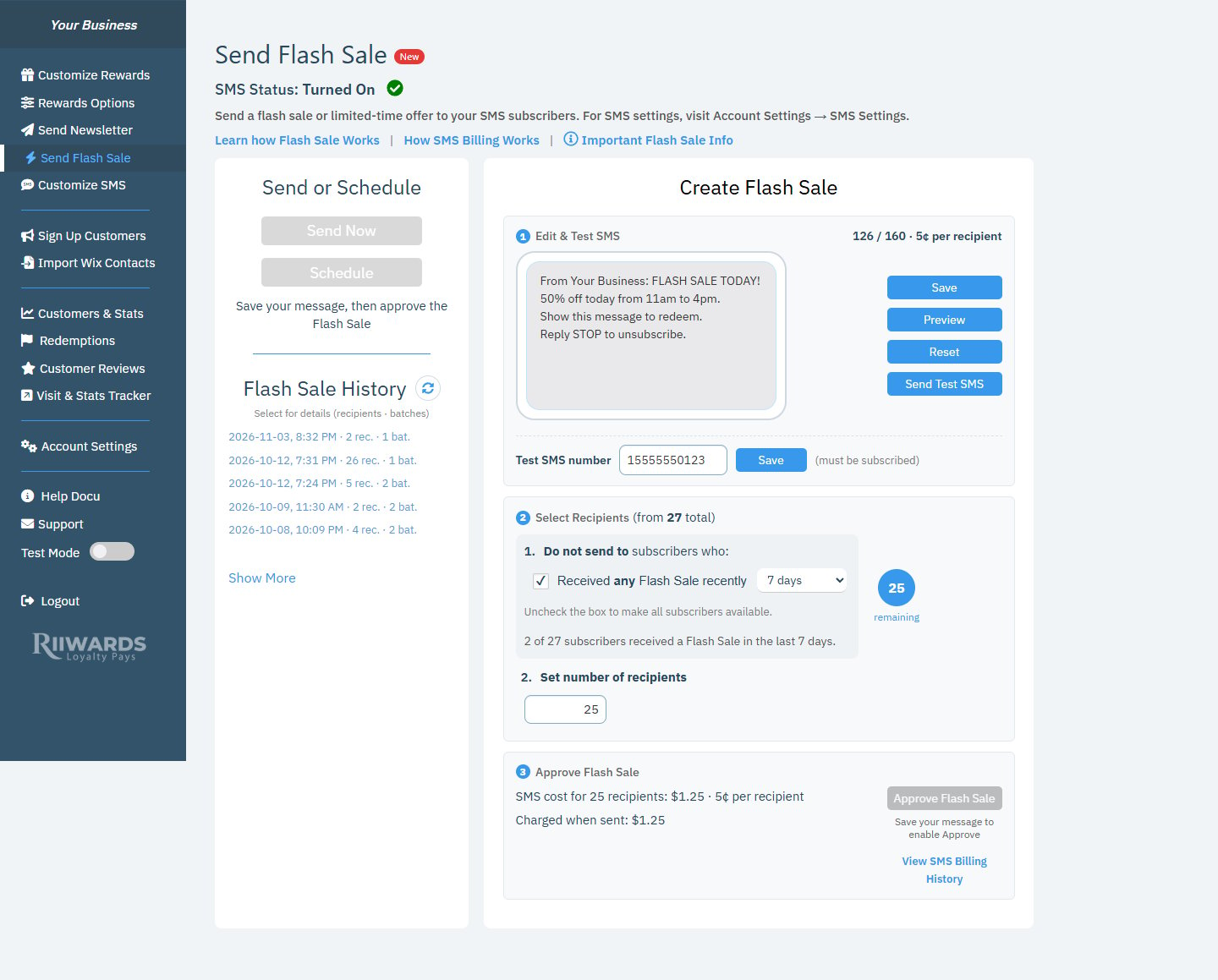
Send Flash Sale: Send or Schedule and history on the left, the three-step composer on the right
Before you start
Click Important Flash Sale Info at the top of the page for a quick summary:- Each Flash Sale is charged separately when sent. Before sending you see the cost per recipient and the total cost. Flash Sales are not part of your monthly SMS Plan.
- Message cost: longer messages or some special characters may cost more. The cost per recipient is shown while you edit.
- Delivery credits: messages that can’t be delivered (for example, because a phone number is unavailable) are credited toward your next Flash Sale.
- Unsubscribe: keep “Reply STOP to unsubscribe.” in every message.
- Test first: send a test SMS to see how it looks on a phone.
Create and send a Flash Sale
1
Edit and test the message
In 1 Edit & Test SMS, type your offer in the phone-shaped box. The counter above it shows the length (for example “126 / 160”) and the cost per recipient. Keep
|name| (your SMS business name) and “Reply STOP to unsubscribe.”.- Save stores the message. You must save before you can approve.
- Preview shows the final text with the placeholders filled in.
- Reset restores the default message.
- Send Test SMS sends the message to your Test SMS number. Enter the number (1 plus 10 digits) and click Save next to it. The test number must be subscribed to your Rewards Club.
2
Select recipients
In 2 Select Recipients, the total number of SMS subscribers is shown in brackets.
- Do not send to subscribers who: Received any Flash Sale recently keeps you from texting the same people too often. Choose the window (1, 2, 3, 5, 7, 14 or 30 days; 7 days is the default). Uncheck the box to make all subscribers available. The blue circle shows how many subscribers remain.
- Set number of recipients limits how many people receive this sale. It starts at everyone remaining.
- When you send to fewer than everyone remaining, choose a Priority: Longest since last Flash Sale (default), Joined recently or Random.
3
Approve the Flash Sale
In 3 Approve Flash Sale, check the SMS cost for your recipients and the amount Charged when sent. Click Approve Flash Sale. Approve stays disabled until the message is saved.To make changes after approving, click Cancel approval.
4
Send now or schedule
Once approved, the left side says “Flash Sale is ready to send.”
- Click Send Now to start sending right away.
- Click Schedule, pick a Date and Time, and confirm. You can only schedule within your SMS Sending Hours (see SMS settings).
Texts are only sent during your SMS Sending Hours, in the time zone you set in Account Settings > SMS Settings. Check your hours before you send.
Change or cancel a scheduled Flash Sale
A scheduled sale shows a SCHEDULED FOR box with the date, time and number of recipients.- Click Reschedule to pick a new date or time.
- Click Cancel Schedule, then Cancel sale to stop it. The sale will not be sent. Click Keep schedule to leave it as it is.
- The message is locked while scheduled. To edit it, cancel the schedule first.
While the sale is sending
When a sale starts, a Sending Flash Sale window shows its progress: first waiting to be picked up, then sending, then “Sale completed.” with a summary:
You also receive an email when the sale is sent. If a payment fails or a technical problem stops the sale, you get an email about that instead.
Flash Sale History
Flash Sale History lists past sales with date, time, number of recipients (“rec.”) and batches (“bat.”). Click Show More for older sales and the refresh icon to update the list. Click a sale to open Flash Sale Details: the message, recipients, total charged, cost details and each batch sent.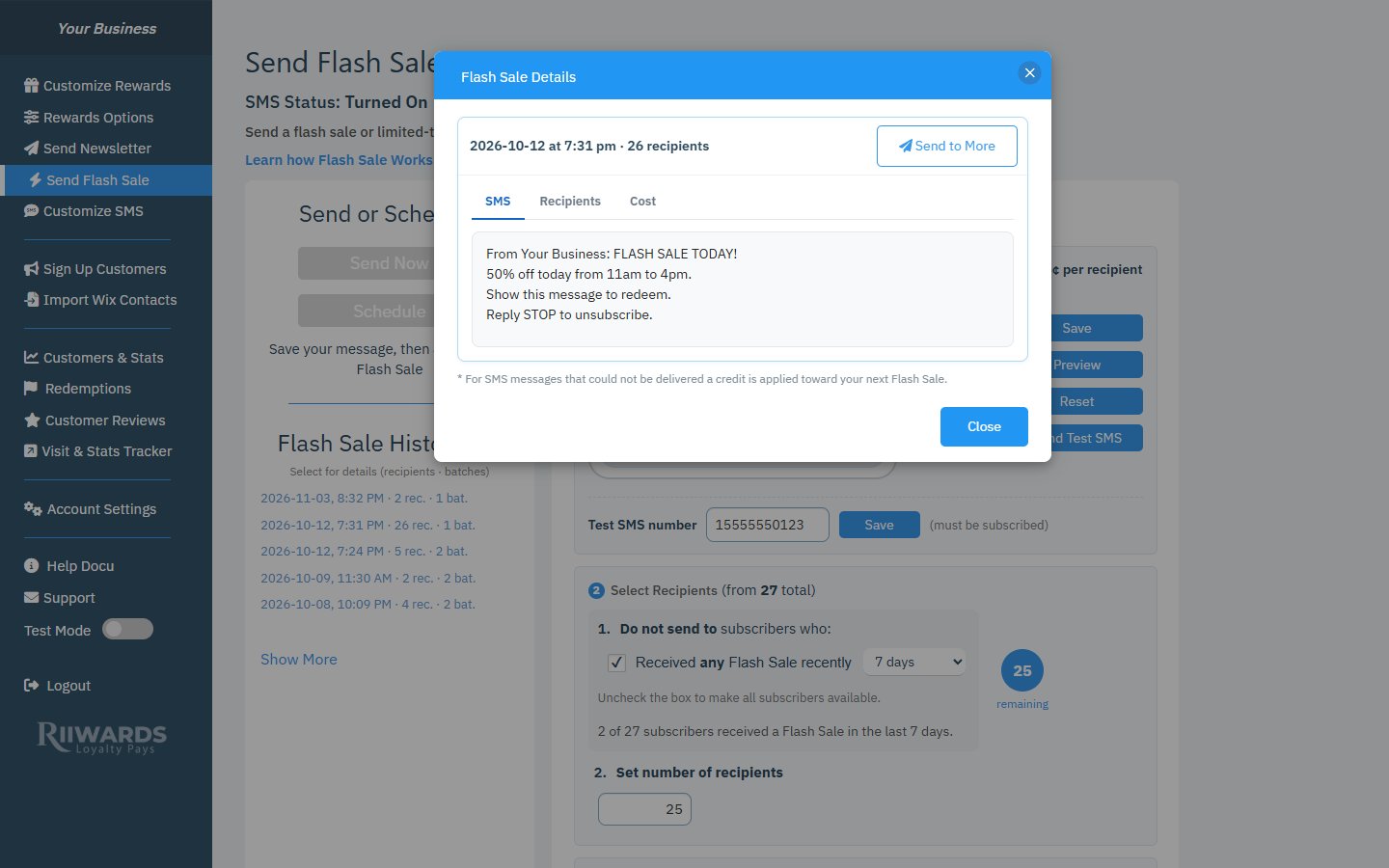
Flash Sale Details for a past sale
Send the same sale to more subscribers
If you limited the number of recipients, you can send the same message to another batch later. Open the sale in Flash Sale History and click Send to More. Subscribers who already received this Flash Sale are excluded automatically, then you set the number of recipients, approve and send as usual.Billing and credits
- Each sale is charged when it is sent, using the card on file.
- The price per recipient and the total are always shown in step 3 before you approve. Click How SMS Billing Works or see SMS billing for details.
- If some texts can’t be delivered, a credit is applied toward your next Flash Sale. Credits expire after 90 days.
- Click View SMS Billing History to see past charges.
Tips for a good Flash Sale
- Keep it short: one offer, one time window, one action (“Show this text to redeem”).
- Say who it’s from.
|name|adds your SMS business name automatically. - Use at most one emoji. Emojis and special characters make the message count as more texts.
- Test on your own phone before sending.
Related
SMS settings
Set your SMS name and sending hours.
SMS billing
How SMS plans, top-ups and Flash Sale charges work.
Customize SMS messages
Change the default Flash Sale text.
Newsletters
Send an email to all members.