

The signup form
Customers reach the signup form from your website widget, your QR code or your Smart Link (see Sign up customers). The form shows your club name, your logo and the reward they can get, then asks for their details step by step.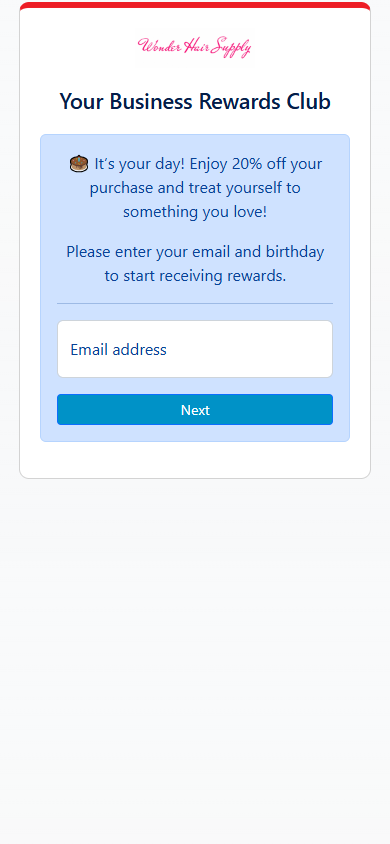
Signup form on a phone
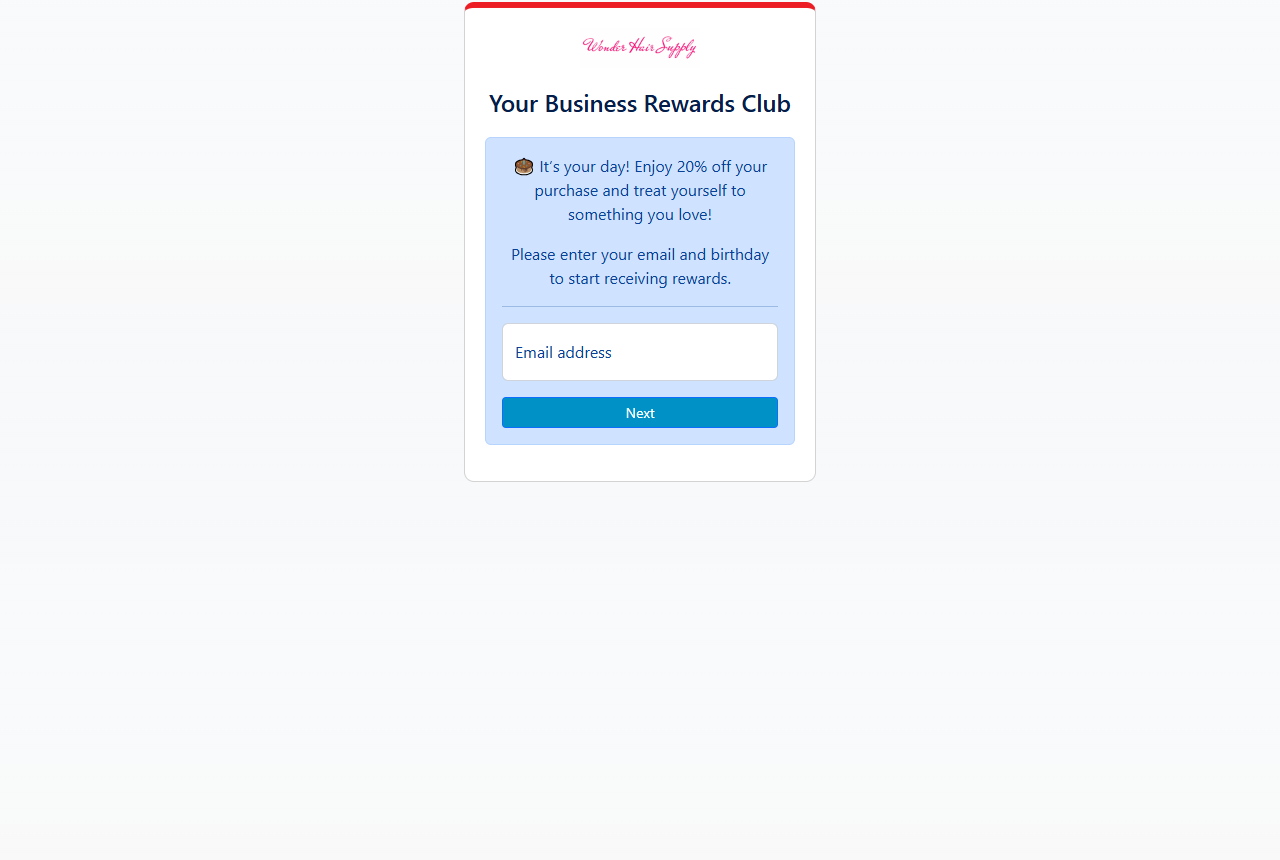
Signup form on a computer
1
Email address
The customer enters their email address and taps Next. The form checks that the email looks valid.
2
Birthday
The customer enters their birth month and day. The year is never asked.
3
Agree to the terms
The customer confirms their email address and checks the box to agree to the Privacy Policy and Terms & Conditions.
4
Optional profile details
The customer can add their first and last name and an anniversary date. If you turned on Collect demographics in Customize Club, the form also asks for gender (Female, Male or Other) and an age group. All of these are optional and can be skipped.
5
Verify the email
The customer sees “Thank you for joining! Please check your email to verify your account.” and receives a verification email. They click the button in that email to verify.
Why email verification matters
Rewards Club sends rewards only to verified email addresses. This protects your list from typos, fake addresses and spam signups, and keeps your emails out of spam folders.- After a customer verifies, they appear in your customer list and receive your Signup Reward (if you offer one).
- Customers who have not verified are not shown in the default customer list. You can still find them with the search box on Customers & Stats, where they appear in red.
- You can change the text of the verification email under Customize Rewards > Signup Reward > Verification. See Signup reward.
Why don’t you ask for the year of birth?
Rewards Club needs only the month and day to send birthday rewards. A full date of birth is sensitive personal information, and many customers prefer not to share it. Asking for less builds trust and gets more signups. If you want to know your customers’ ages, turn on Collect demographics to ask for an optional age group instead.Text-to-join (SMS signup)
If you set up SMS, customers can join by text message. This is the fastest option for walk-ins, and it collects both a phone number and an email address.1
The customer texts your keyword
They scan your SMS QR code, tap your SMS Smart Link, or type Join to your Rewards Club number. Their messaging app opens with the keyword filled in and they tap send.
2
They receive a signup link
Rewards Club replies right away with a text containing a personal link to the signup form (the Signup Link message).
3
They complete the form
The link opens the signup form described above. Their phone number is already connected to their profile.
4
They verify their email
They verify their email from the verification email. Then they start receiving rewards by email, and reward expiration reminders by text.
Automatic SMS reminders
Rewards Club follows up by text when a customer starts but doesn’t finish:- Reminder to Continue Signup: sent if the customer texted in but did not complete the form.
- Email Verification Reminder: sent if the customer completed the form but did not verify their email. It includes a link to fix the address if it was wrong (Update Email Address).
Customers can reply STOP at any time to stop receiving texts. Every Rewards Club text includes “Reply STOP to unsubscribe.”
Related
Sign up customers
Get your QR codes, Smart Link and SMS keyword.
Customize SMS messages
Edit the texts customers receive.
Signup reward
Edit the welcome and verification emails.
GDPR and consent
How customer consent and data are handled.